Guide
How to Remove Product Photo Backgrounds for Ecommerce
A practical guide to removing product photo backgrounds while preserving product edges, shadows, labels, and ecommerce usability.
- Guides
- AI Product Photo Editing

Examples
Scenes from the Riverflow library
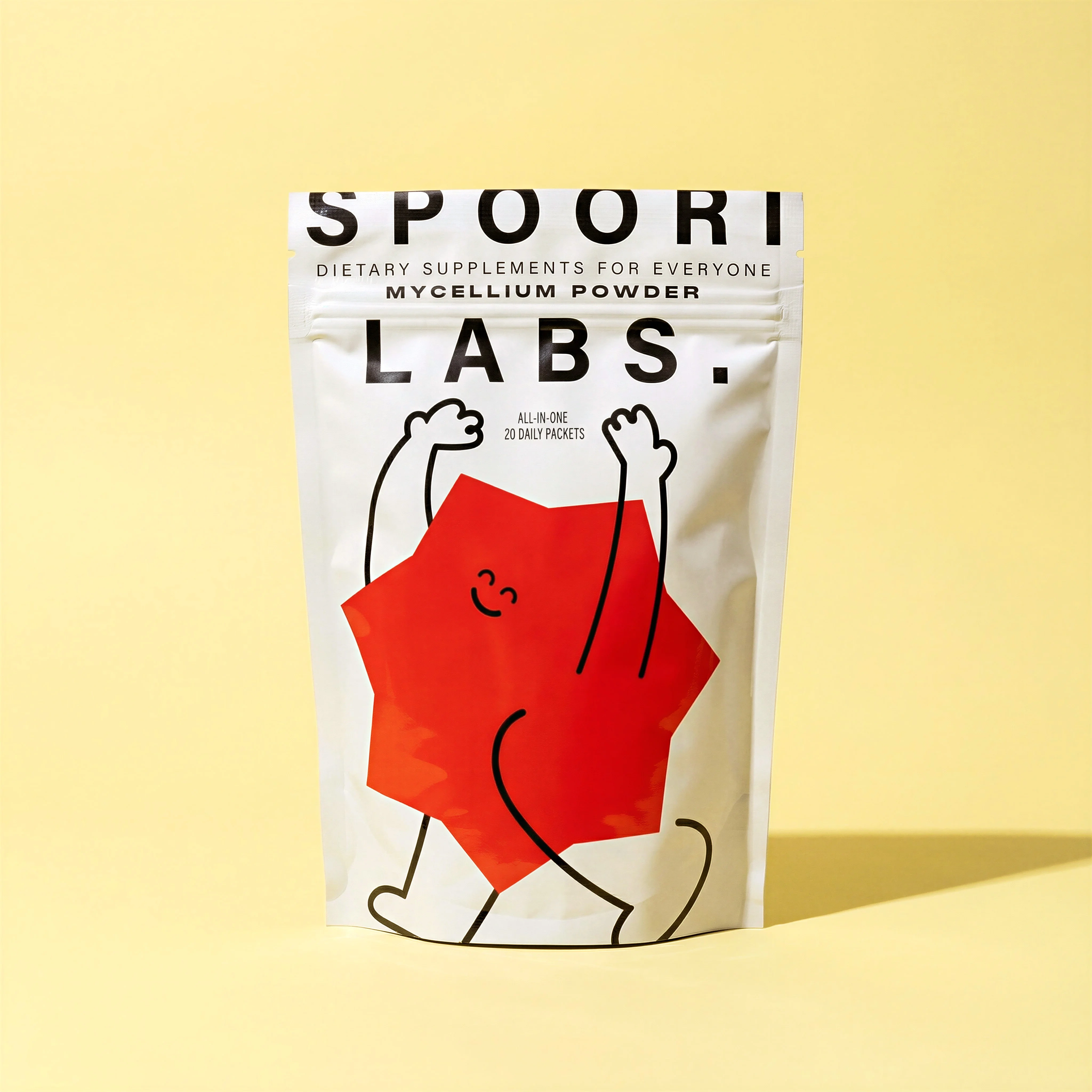
Rectangular packaging gives a simple masking example.
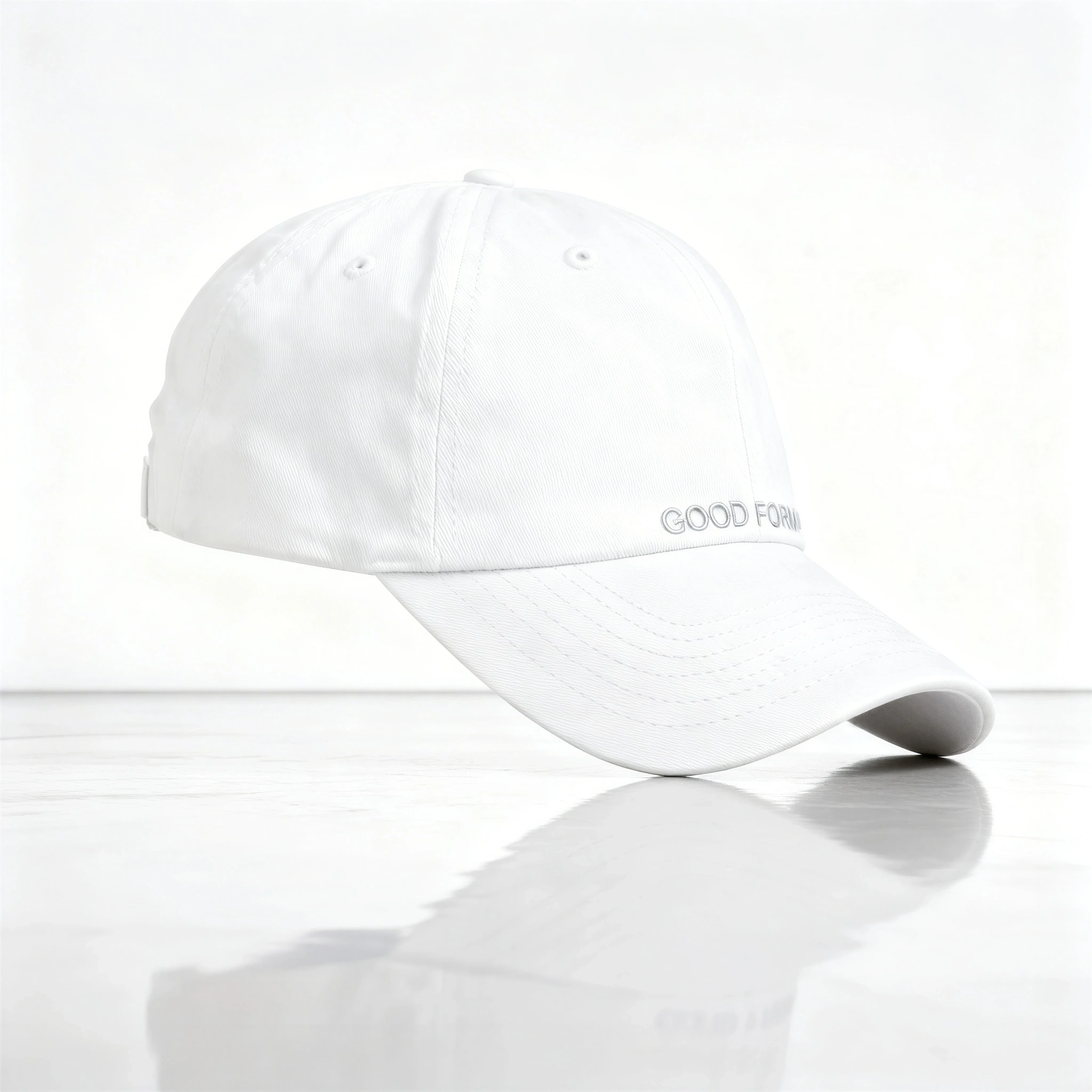
Soft fabric curves show edge cleanup on light backgrounds.
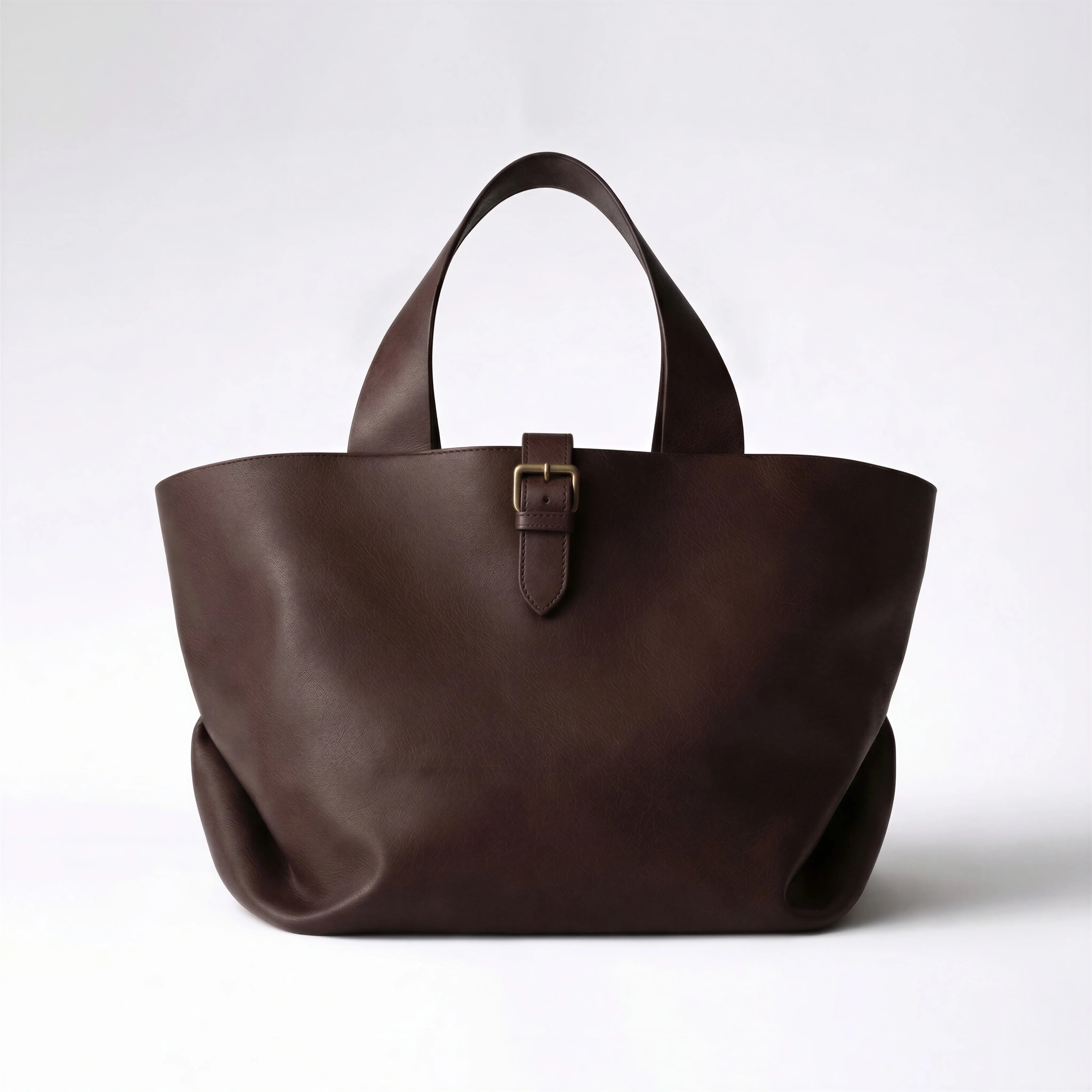
Handles and negative spaces demonstrate more complex cutouts.
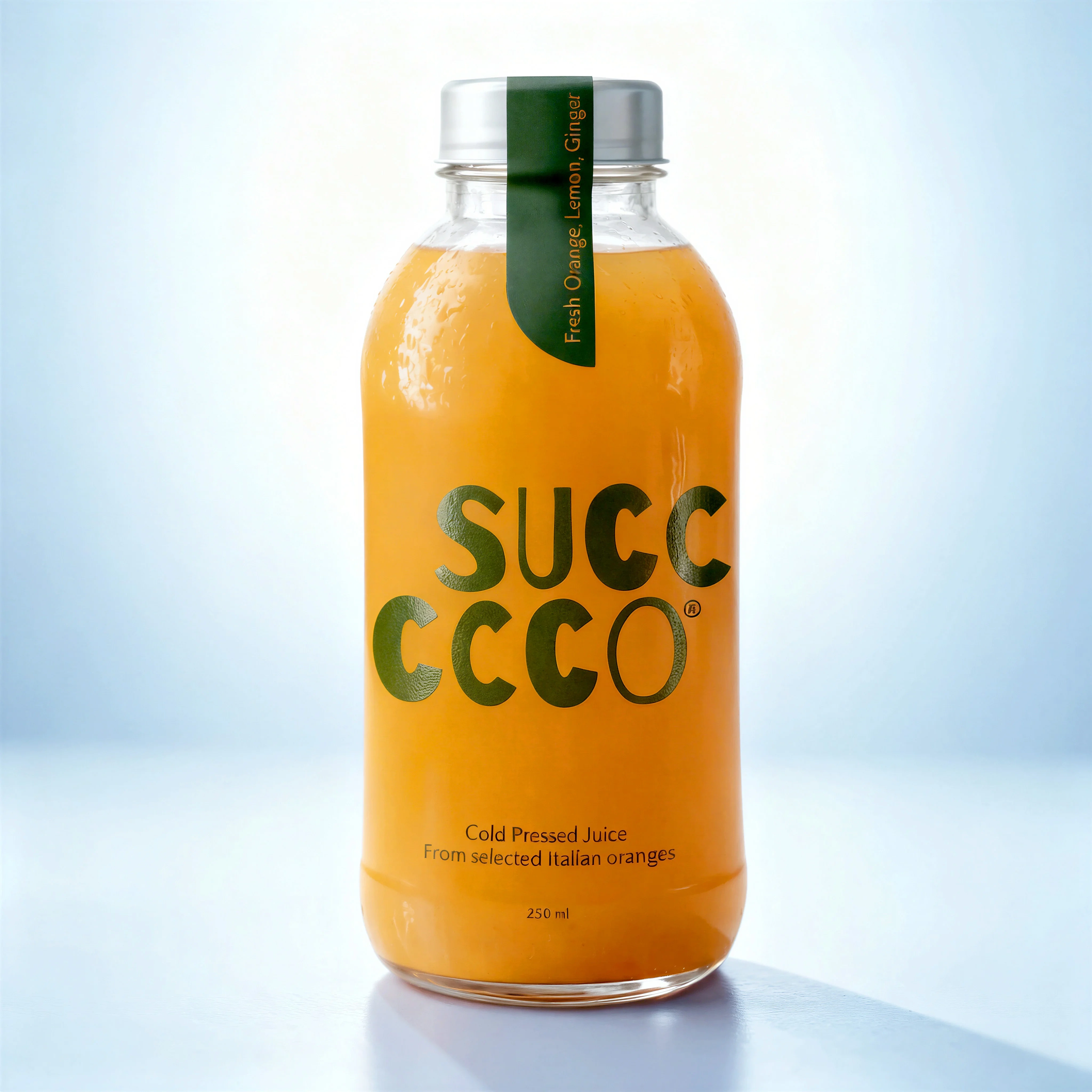
Simple bottle silhouette is well suited to clean background removal.
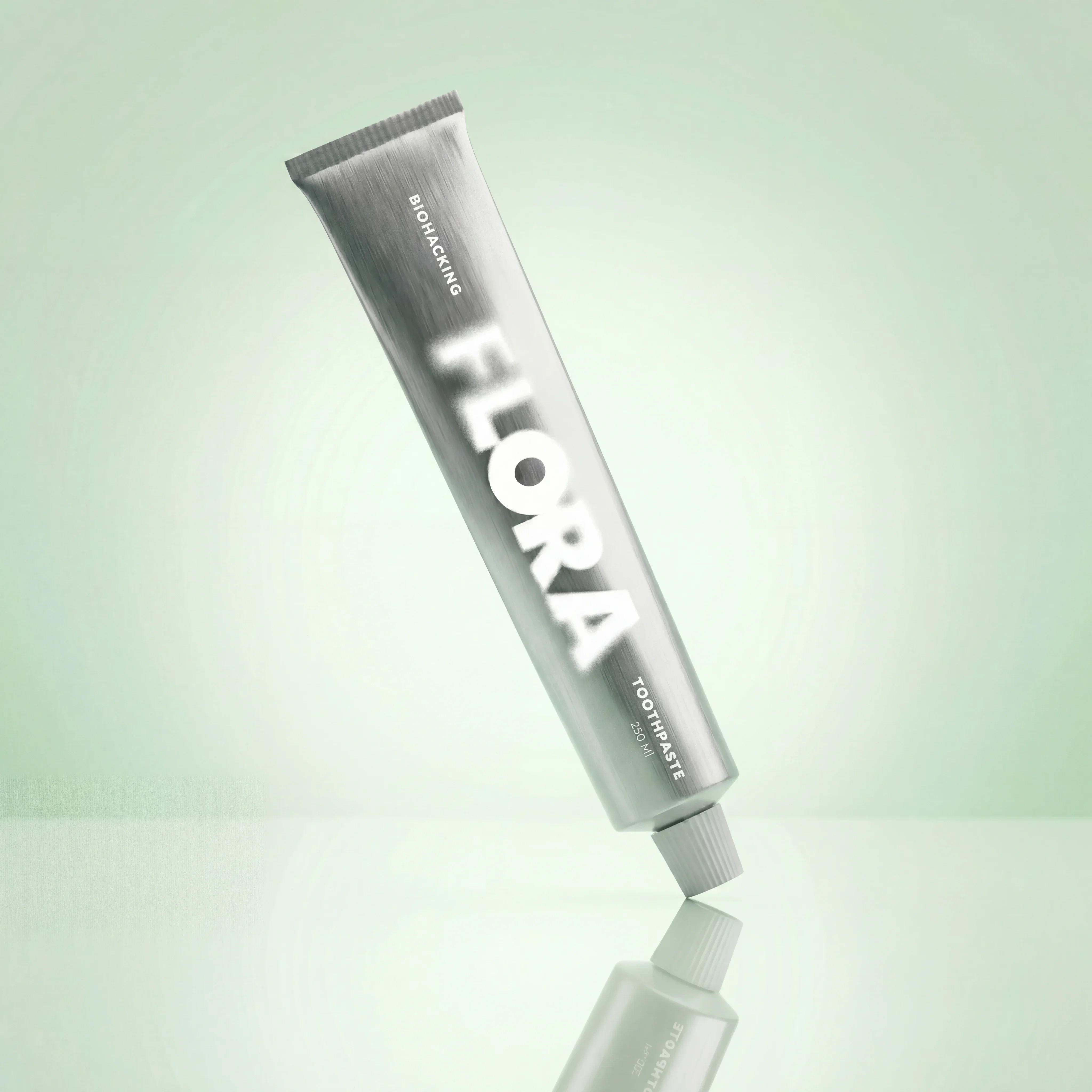
Crisp product edges make the isolation workflow easy to evaluate.
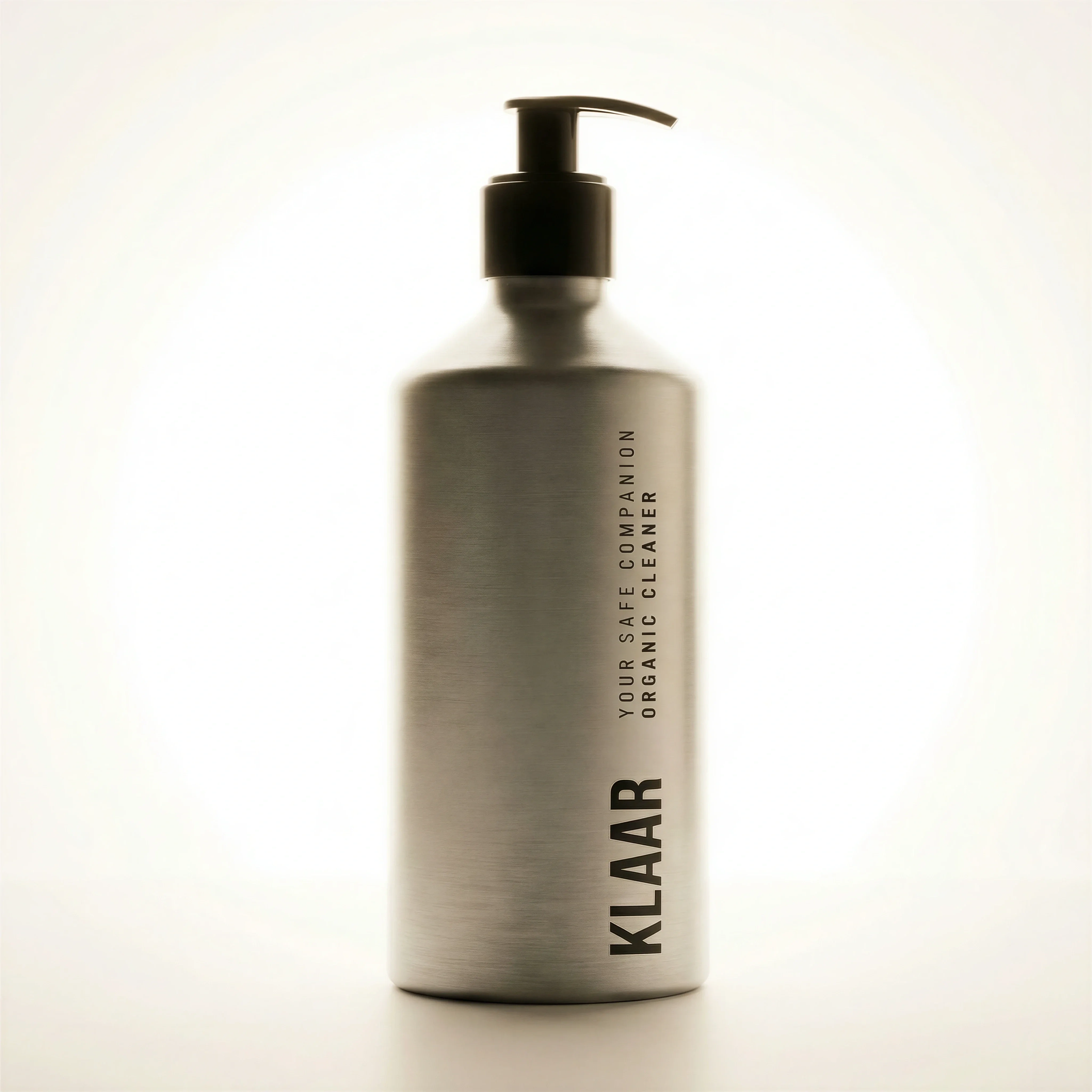
A straightforward packshot supports precise cutout and replacement checks.
Pick the right output background
Background removal is not only an isolation task. The output has to match the next use: marketplace feed, product grid, design template, email module, paid social ad, Photoshoots Scene, or image-to-image workflow.
For ecommerce teams, the useful question is not just "can the background be removed?" It is "what should this product asset be ready to do next?" A transparent PNG may be right for templates. A white background may be right for a product grid. A clean source with preserved shadows, label detail, and material cues may be the better starting point for adapting the product into a Riverflow Scene.
Background removal is the start of several different workflows. Use product-on-white photography when the final output is a clean ecommerce image, turn product photos into lifestyle images when the cutout will feed a scene, and Fix Product Details when the product is isolated cleanly but the artwork has been damaged.
Visual playbook
Background removal output types
Choose the background treatment based on where the product will be used next.
Clean ecommerce isolation
A simple product cutout keeps the shape clear and makes the image easy to reuse across product grids and templates.
Use when: Use for PDP galleries, marketplace-style images, SKU libraries, and design handoff.
Prompt cue
Remove the background from this product photo while preserving the box shape, label edges, color, and natural contact shadow.
Complex edge cutout
Products with straps, handles, fabric, negative space, or fine edge detail need slower review.
Use when: Use when the product will appear on contrasting backgrounds or be placed into new campaign layouts.
Prompt cue
Isolate the tote accurately, preserving handles, stitching, internal negative space, edge softness, and realistic shadow treatment.
Scene-ready product source
A clean product asset can become the source for Photoshoots, image-to-image backgrounds, product swaps, brand-color layouts, and campaign crops.
Use when: Use before creating Riverflow lifestyle images, ad variants, landing page visuals, and seasonal scenes.
Prompt cue
Create a clean scene-ready product asset from this pump bottle. Preserve label placement, cap shape, material highlights, proportions, and enough edge information for later scene adaptation.
Background removal standards
Choose the right approach
Cutout review matrix
Review the cutout against the destination and the Riverflow workflow it will feed.
| Workflow | What to control | Review standard |
|---|---|---|
| Transparent or white export | Alpha edge, fine details, halos, missing product parts, contact shadow decision, background tone, crop, whitespace, and export size. | The product should work on light and dark layouts without a visible fringe, damaged edges, or a pasted-on feel. |
| Photoshoots source | Product shape, scale, lighting direction, perspective, material highlights, edge detail, shadow logic, and label legibility. | The product should be clean enough to adapt into a Riverflow library Scene or a Scene from your own photoshoot without losing product truth. |
| Images exploration | Background brief, product reference, model choice, color harmony, shadow direction, text-safe space, and channel crop. | Text-to-image or image-to-image work should change the environment, not the product shape, label, or material cues. |
| Editing finish | Aspect ratio, center point, detail repair, angle variants, product swap, crop, and file type. | Finishing edits should make the asset usable for the destination while preserving the cleaned product source. |
Riverflow workflow
How this works in Riverflow
A background-free product image is most useful when it is prepared for the next production step, not treated as the end of the workflow.
Photoshoots
Move the product into a controlled Scene
Use the cleaned product as the source for a Scene from Riverflow's brand-safe library, or adapt it into a Scene from your own photoshoot. Preserve the product edges, scale, and label detail so it can sit naturally in the new environment.
Images
Test background directions
Use Riverflow's Images product for text-to-image or image-to-image exploration with Riverflow 2.0 Pro, Google's Nano Banana 2, or OpenAI GPT-Image-2 when you need clean surfaces, brand-color worlds, or simple merchandising contexts around the product.
Editing
Prepare the final asset
Change aspect ratio while keeping the image natural, fix product artwork in place with Riverflow 2.0 Reference-Based Super Resolution, generate 9 angle variants for review, or use Swap product to replace a product in an approved image.
Background removal checklist
Before you publish
Check the product before exporting
- Product shape, corners, handles, straps, caps, pumps, closures, and negative spaces are intact.
- Edges are clean with no visible halo, jagged outline, or erased material.
- Transparent, reflective, fuzzy, fabric, glass, and glossy areas still look realistic.
- Logo, label, packaging text, and color have not shifted during editing.
- Shadow treatment matches the destination: none, contact shadow, designed shadow, or scene shadow.
- The product is not distorted, warped, stretched, or over-smoothed.
- The product has enough edge, shadow, and material information to adapt into a Riverflow Scene if that is the next step.
- Aspect-ratio changes keep the product naturally placed, not stretched or awkwardly centered.
- The crop leaves enough whitespace for ecommerce layouts, ads, and email modules.
- The exported file type matches the use case, such as PNG for transparency or WebP/JPEG for final placement.
Cutout QA on real layouts
Do not approve a cutout against the editor checkerboard alone. Drop it onto the backgrounds it will actually use: white PDP, light grey grid, brand-color email module, dark social card, and a lifestyle scene if that is the next step. Halos, clipped handles, fake transparent glass, and missing shadows often only show up once the product is placed into a real layout.
For products with straps, pumps, transparent material, hair, fabric, or shiny edges, keep a source-to-output comparison beside the final crop. The most expensive mistake is not a visible bad cutout; it is a subtly damaged product source that later gets reused in dozens of Scenes and ad variants.
Riverflow prompt recipe
Create it in Riverflow
Riverflow prompt recipe
Use this structure to turn the strategy into a specific creative brief that keeps the product accurate and the scene useful.
- 1
Input
Upload the product photo and name the next use: transparent cutout, white ecommerce image, brand-color layout, Photoshoots Scene source, Images exploration, or product swap.
- 2
Protect
Call out fragile details such as handles, straps, caps, labels, transparent sections, reflective areas, soft edges, existing shadows, and packaging artwork.
- 3
Output
Specify background, crop, shadow treatment, file type, aspect ratio, center point, and whether the product will be reused in another Riverflow workflow.
- 4
Review
Inspect on contrasting backgrounds and compare against the source for edge loss, color shift, label damage, and product detail changes.
Example prompt
Mistakes to avoid
Treating every background removal job as a one-click export.
Review complex materials, fine edges, transparency, fabric, glass, and shadows before approving.
Removing all shadow by default.
Choose the shadow treatment based on the destination. A subtle contact shadow often makes ecommerce products feel more grounded.
Using a transparent cutout as the main image everywhere.
Plan separate outputs for marketplaces, product pages, ad layouts, brand backgrounds, Photoshoots Scenes, and lifestyle scenes.
Sending a damaged cutout into scene generation.
Fix edge loss, label damage, distorted shapes, and missing shadows before using the product in Photoshoots or Images.
Only reviewing the cutout on one background color.
Check the export on light and dark backgrounds so halos and clipped edges are visible.
FAQ
Should product background removal always create a transparent PNG?+
No. Transparent files are useful for templates and scene building, but product pages, marketplaces, and ads may need white, light, brand-color, or fully designed backgrounds.
What products need extra background removal review?+
Products with fabric, hair, handles, straps, glass, transparency, reflections, fine print, soft shadows, or low contrast against the original background need extra review.
When is background removal not enough?+
If the source image has poor lighting, distorted packaging, blurred text, or missing product detail, a clean cutout will not make it production-ready. Repair the product detail, reshoot, or rebuild the asset before using it as a source.
What if the cutout is good but one product detail is wrong?+
Use an Editing pass before export or reuse. Riverflow 2.0 Reference-Based Super Resolution can help update product artwork in place without changing the rest of the image.
Start creating
Get started with on-brand visuals
Turn guide ideas into product-accurate creative in Riverflow, using your brand, products, scenes, styles, and channel crops from the start.
Your catalog into campaign-ready Creative
Riverflow connects your products, brand rules and creative workflows so your team can create on-brand photoshoots, ads, videos and edits across every campaign.