Guide
How to Keep Products Consistent in AI Images
A practical guide to keeping products consistent in AI images, from source references and prompts to review workflows and campaign exports.
- Guides
- AI Product Photo Editing

Examples
Scenes from the Riverflow library
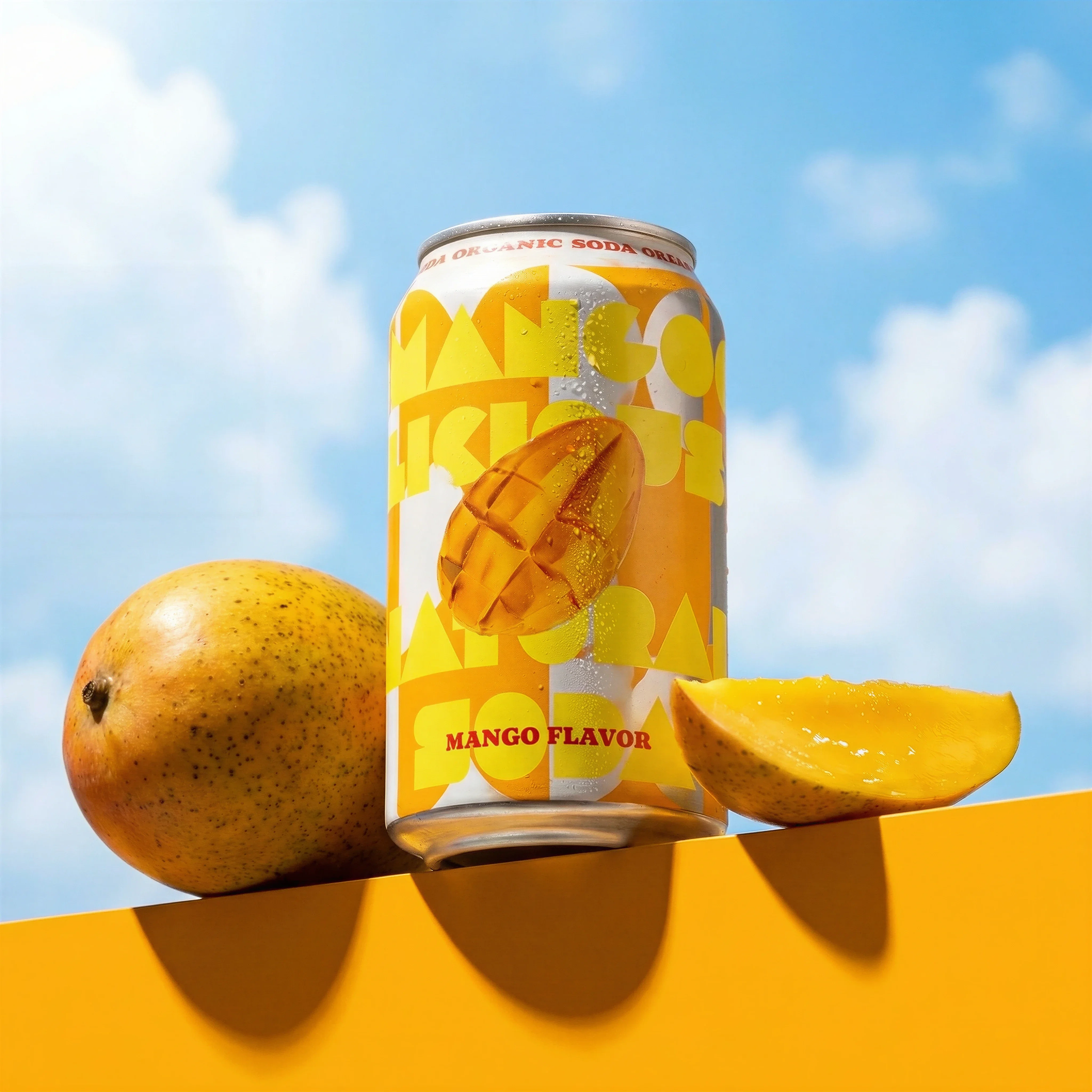
Same can moves into fruit-styled outdoor creative.
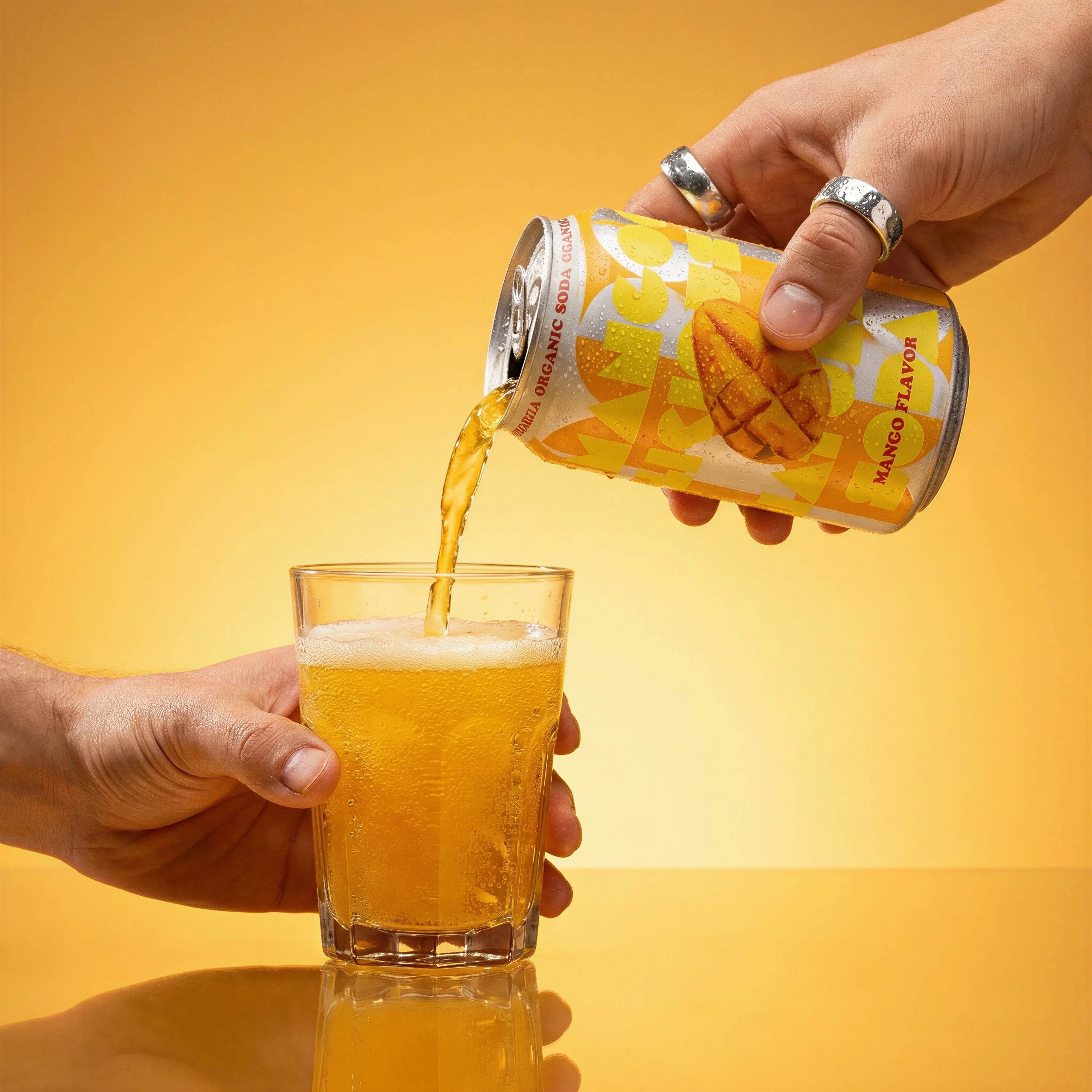
Pouring action keeps the product identity intact.
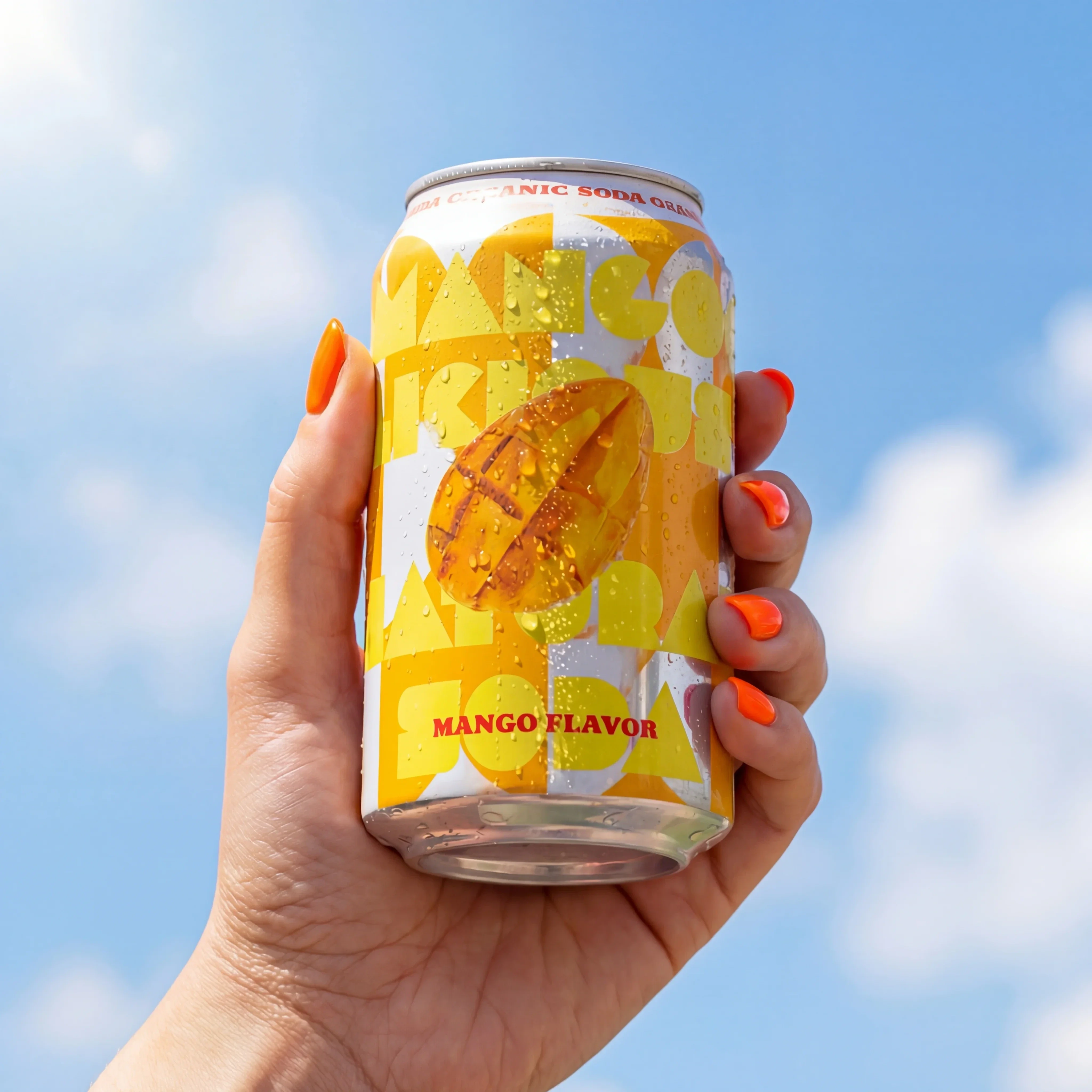
Handheld lifestyle variant preserves the same yellow brand world.
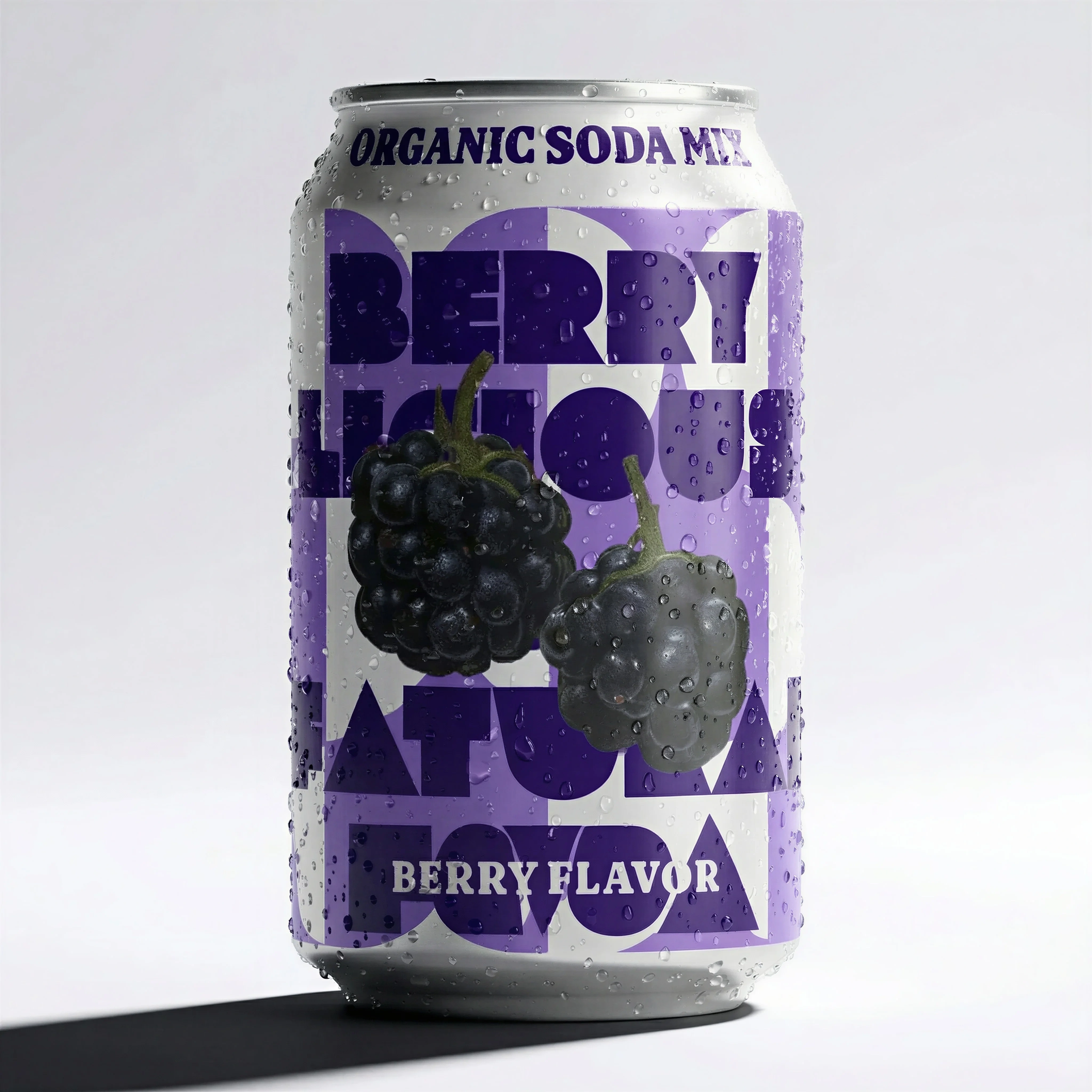
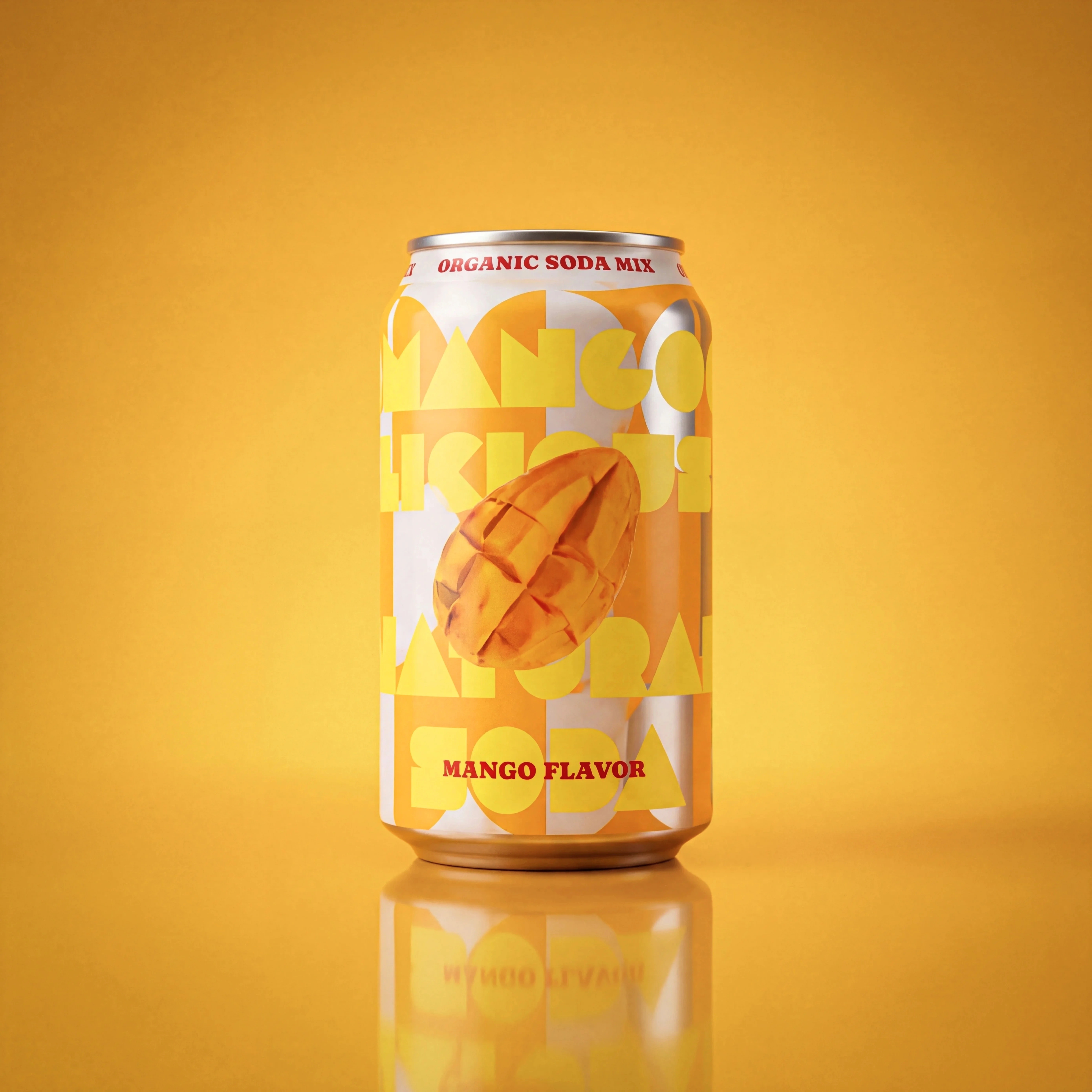
Clean baseline packshot establishes the reference product identity.
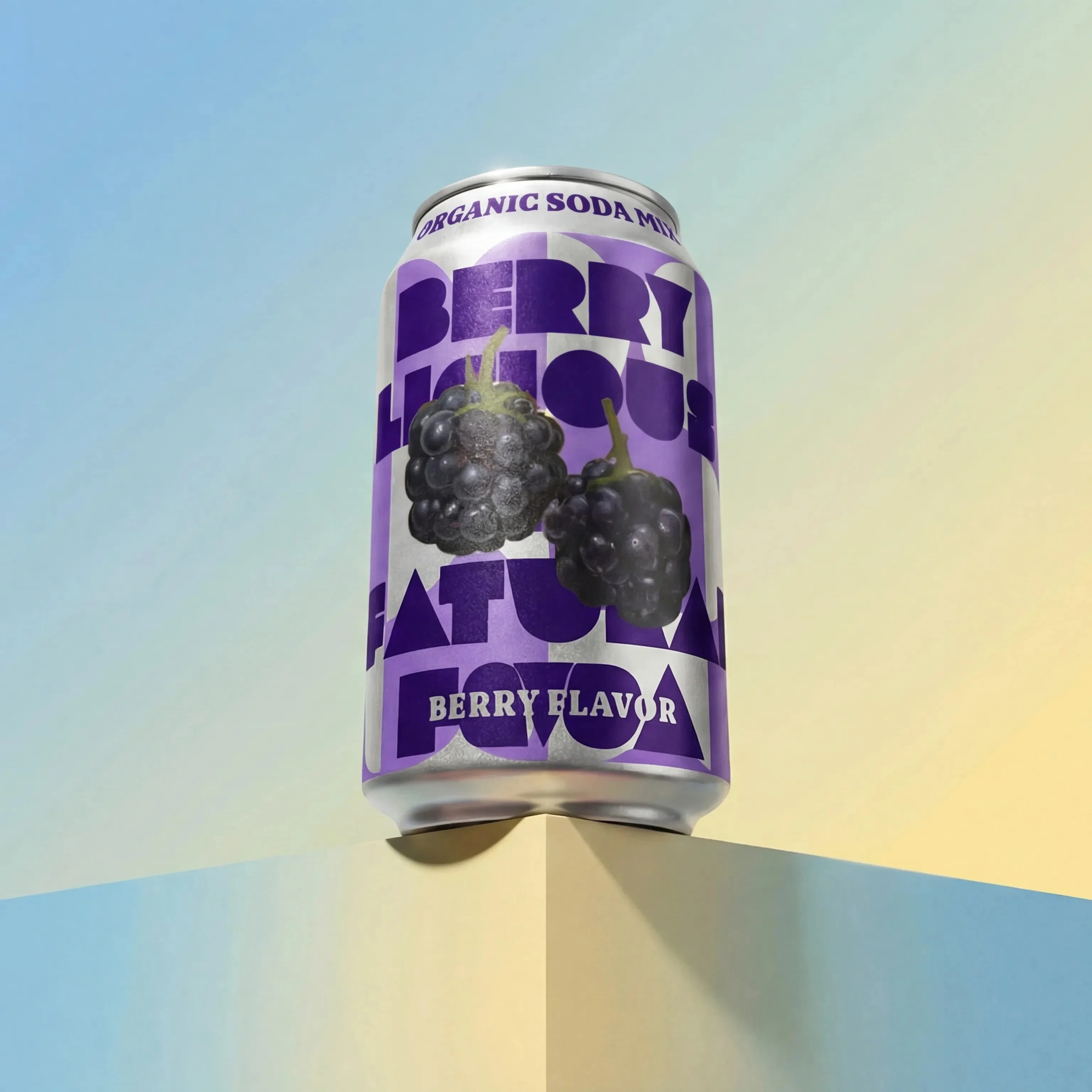
Studio variation keeps the can recognizable while changing the setting.
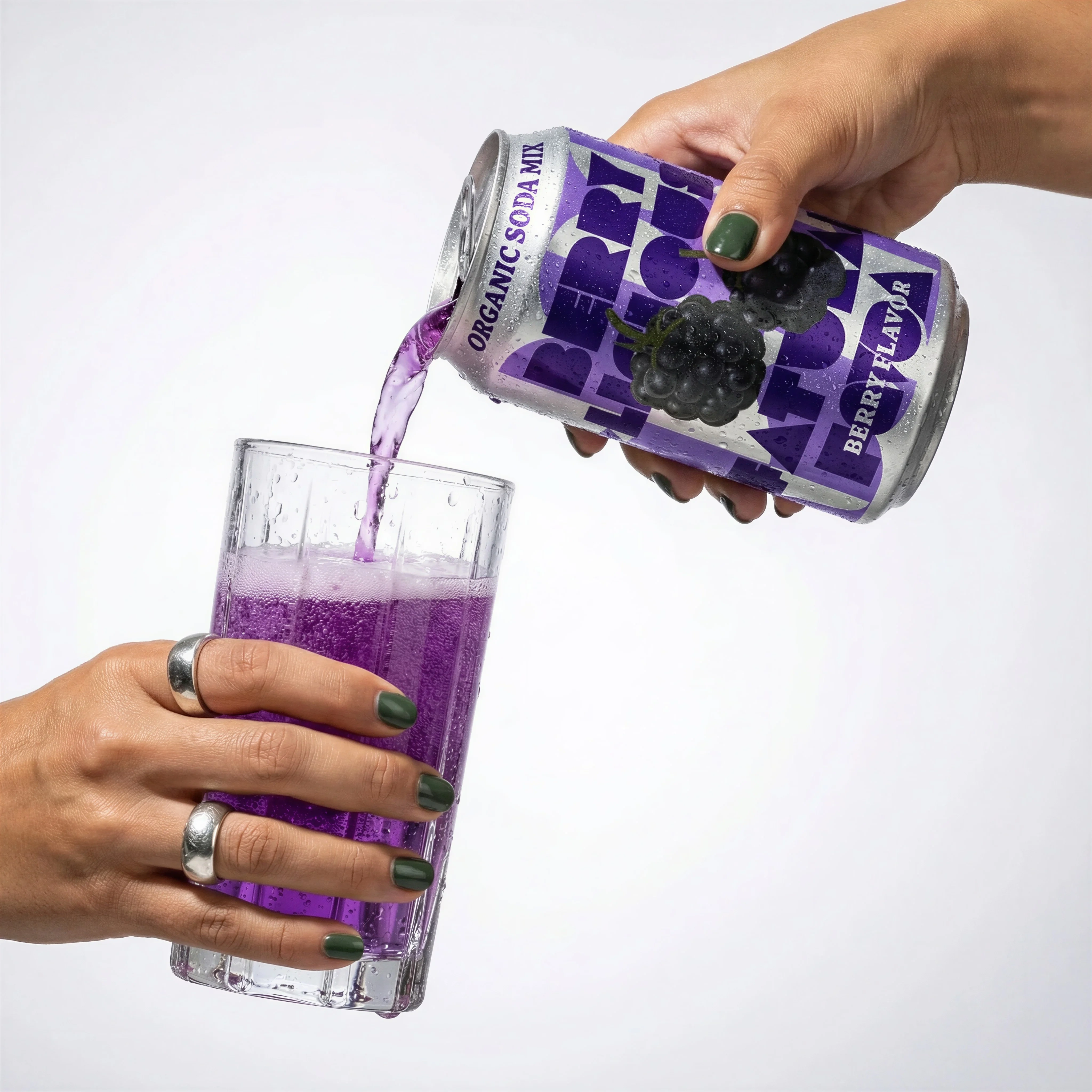
Action framing tests product consistency under hands, motion, and liquid.
Anchor the product first
Product consistency is what separates useful ecommerce AI imagery from attractive exploration. A scene can be well lit and still be unusable if the label changes, the can color shifts, the package shape mutates, or the image implies the wrong size or pack count.
The practical move is to define two layers before generation starts. The product layer is fixed: SKU, packaging, artwork, color, material, scale, and variant. The creative layer is flexible: Scene, Style, camera angle, crop, props, light, and channel use. Riverflow's workflow is built around that separation, so teams can make many assets without asking every image to rediscover the product from scratch.
If consistency is the system-level problem, stay with this guide. If the image is already approved but a local label, logo, or small-text detail is wrong, go straight to Fix Product Details. If the product needs to move into a new environment, use turn product photos into lifestyle images.
Visual playbook
Build a reference-led product system
Use the source product as the fixed point, then produce scene variations that shoppers can trust.
Approved SKU reference
Start with a clean product image that shows the exact label, color, shape, and variant.
Use when: Use before generating ads, lifestyle scenes, gallery images, or variant families.
Prompt cue
Use this berry soda can as the fixed source reference. Preserve the can shape, label placement, color, logo, and variant identity.
Controlled Scene system
Use a Riverflow Scene from the brand-safe library, or bring your own Scene from a real photoshoot, so the environment is intentional rather than improvised.
Use when: Use for product page lifestyle galleries, seasonal campaigns, retail media, paid social, and email modules.
Prompt cue
Adapt this bright outdoor fruit Scene to the exact mango soda can. Keep the label readable, product scale believable, and packaging unchanged.
Style-controlled action
Hands, pours, motion, and liquids add review risk, so use Styles to keep the campaign look consistent while still checking product detail.
Use when: Use when creative needs energy but the product still has to stay recognizable across shot types.
Prompt cue
Create a pouring action scene using the exact berry soda can and the approved campaign Style. Preserve packaging details, avoid covering the brand mark, and keep lighting consistent.
Consistency controls
Choose the right approach
Product consistency matrix
Review consistency at the product, Scene, Style, and edit level before approving any generated image.
| Workflow | What to control | Review standard |
|---|---|---|
| Product truth | Shape, proportions, color, material, logo, label placement, visible text, packaging artwork, variant, and included accessories. | The generated image should match the selected SKU, not a plausible version of the category. |
| Photoshoots Scenes | Scene source, scale, perspective, lighting direction, shadows, reflections, hands, props, and how much of the product remains visible. | Whether the Scene comes from Riverflow's library or your own photoshoot, it should support the product without hiding key details or inventing a use case. |
| Photoshoots Styles | Palette, contrast, lens feel, polish level, lighting mood, surface treatment, and shot type consistency. | Assets should feel like part of the same campaign even when one image is studio, another is lifestyle, and another is action-led. |
| Editing pass | Angle variants, aspect ratio, center point, product detail repair, product swaps, final crop, and channel export. | Edits should improve fit and accuracy without changing the approved product identity or making the image feel stretched. |
Riverflow workflow
How this works in Riverflow
A practical Riverflow workflow keeps product identity separate from the creative surface, then uses review and editing to close the gap between a strong image and a publishable ecommerce asset.
Photoshoots
Choose controlled Scenes and Styles
Start from a Scene in Riverflow's brand-safe library, or bring in a Scene from your own photoshoot. Adapt that Scene to the SKU, then use Styles to keep lighting, palette, finish, and shot language consistent across different scenes and shot types.
Images
Explore within product guardrails
Use Riverflow's Images product when you need text-to-image or image-to-image exploration with Riverflow 2.0 Pro, Google's Nano Banana 2, or OpenAI GPT-Image-2. Keep product references attached so model exploration stays bounded by product truth.
Editing
Correct before export
Generate 9 angle variants when checking product form, change aspect ratio while keeping the composition natural, fix artwork in place with Riverflow 2.0 Reference-Based Super Resolution, or use Swap product to replace the SKU in an approved scene.
Product consistency checklist
Before you publish
Check these details before publishing
- The correct SKU, flavor, scent, shade, size, or pack count is shown.
- Product shape and proportions match the source reference.
- Colors, materials, finishes, reflections, and textures remain believable.
- Logos, labels, and important text are not invented, scrambled, or moved.
- The selected Scene supports the product instead of competing with it or hiding key details.
- Styles remain consistent across studio, lifestyle, action, and detail shots.
- Hands, props, liquid, fabric, or shadows do not hide critical product information.
- On-image text uses approved copy and brand fonts.
- Aspect-ratio changes keep the product naturally placed and centered for the destination.
- The image remains recognizable in the final crop and at mobile size.
- The output is compared against the original source reference before approval.
Consistency failure patterns
The most common drift is not dramatic. It is a sequence of small changes: a cap gets taller, the logo moves a few millimeters, the label color warms up, the flavor name becomes less legible, and the product slowly stops matching the SKU record. These changes are easy to miss when every image is reviewed alone.
Review consistency as a set. Put the product-on-white reference beside the lifestyle image, the ad crop, the detail shot, and the variant image. If the same product looks like four slightly different products, pause generation and tighten the source references, Scene choice, Style rules, or Editing pass before scaling more outputs.
Riverflow prompt recipe
Create it in Riverflow
Riverflow prompt recipe
Use this structure to turn the strategy into a specific creative brief that keeps the product accurate and the scene useful.
- 1
Input
Attach the exact product reference for the SKU, plus packaging artwork, approved product copy, variant rules, and any source Scene you want to adapt.
- 2
Lock
Specify the product details that must not change: shape, label, logo, variant, color, material, size, included items, and visible text.
- 3
Scene
Choose whether the image should use a Riverflow library Scene, a Scene from your own photoshoot, or an Images text-to-image or image-to-image exploration.
- 4
Style
Describe the repeatable campaign look: palette, lighting, surface, camera feel, polish level, and which shot types need to match.
- 5
Edit
Plan the finishing pass: angle variants, aspect ratio, center point, detail repair, product swap, crop, and channel export.
Example prompt
Mistakes to avoid
Approving the image because the overall Scene looks good.
Review the product first. A beautiful AI image is still unusable if the SKU details are wrong.
Using a different visual language for every generated asset.
Define a Style for the campaign so studio, lifestyle, action, and crop variants feel related.
Using one generated image as the source for many more generations.
Return to the original approved reference set so small errors do not compound across assets.
Mixing variant references in the same request.
Keep each SKU reference set separate unless the brief is explicitly for a bundle, assortment, or comparison.
Cropping first and checking product detail later.
Use the final aspect ratio as part of review, then fix product details before export if the artwork, label, or center point needs correction.
FAQ
Why do AI product images drift?+
Drift usually happens when the prompt leaves product details open to interpretation, references are weak, or multiple variants are mixed together. Clear source inputs and review rules reduce that risk.
How do Photoshoots help with product consistency?+
Photoshoots lets teams adapt products into controlled Scenes from Riverflow's brand-safe library or into Scenes from their own photoshoots. Styles then help keep the campaign look consistent across different scene types and shot types.
How should I review consistency across a full image set?+
Place the reference, PDP image, lifestyle image, ad crop, and detail shot side by side. Check shape, label position, color, scale, variant, and visible text as a set rather than approving each image in isolation.
What if the product is almost right but one detail is wrong?+
Use an Editing pass rather than regenerating the whole image. Riverflow 2.0 Reference-Based Super Resolution can help find and update product artwork in place, and Swap product can replace a product in an existing image when the scene is already approved.
Start creating
Get started with on-brand visuals
Turn guide ideas into product-accurate creative in Riverflow, using your brand, products, scenes, styles, and channel crops from the start.
Your catalog into campaign-ready Creative
Riverflow connects your products, brand rules and creative workflows so your team can create on-brand photoshoots, ads, videos and edits across every campaign.