Guide
How to Fix Product Details in AI Product Photos
A practical guide to fixing degraded labels, broken artwork, and small product detail errors in AI-generated ecommerce images.
- Guides
- AI Product Photo Editing

Examples
Scenes from the Riverflow library
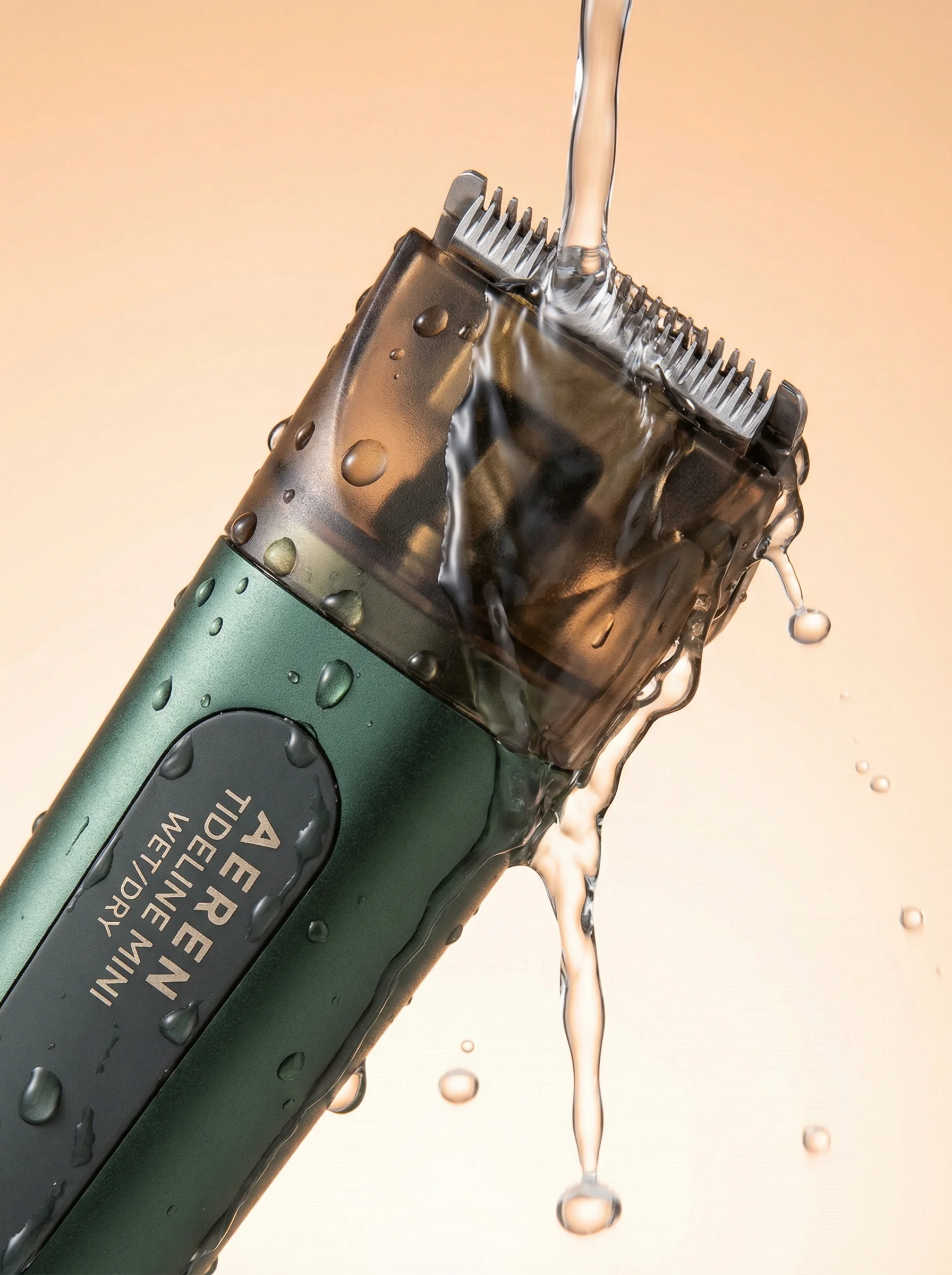
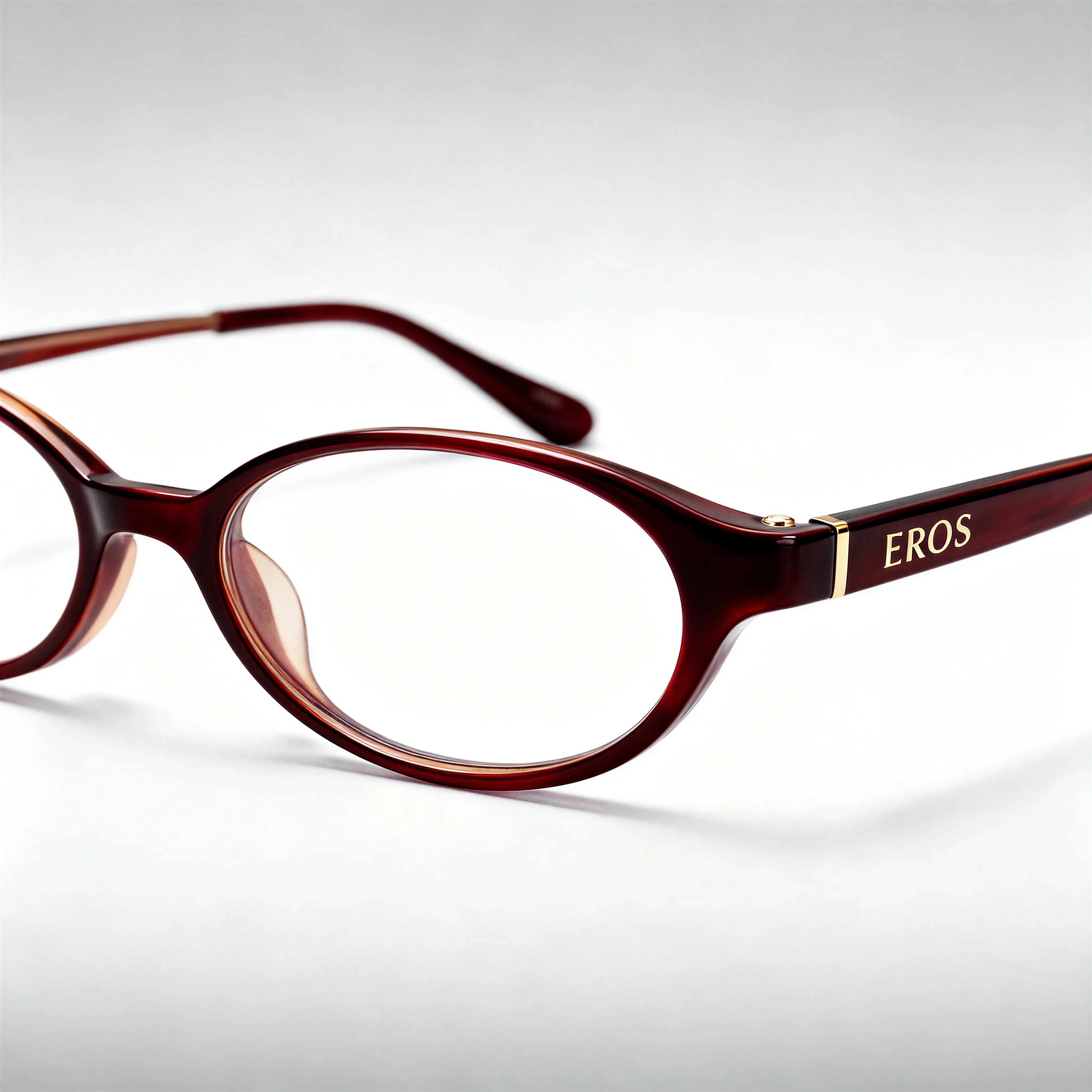
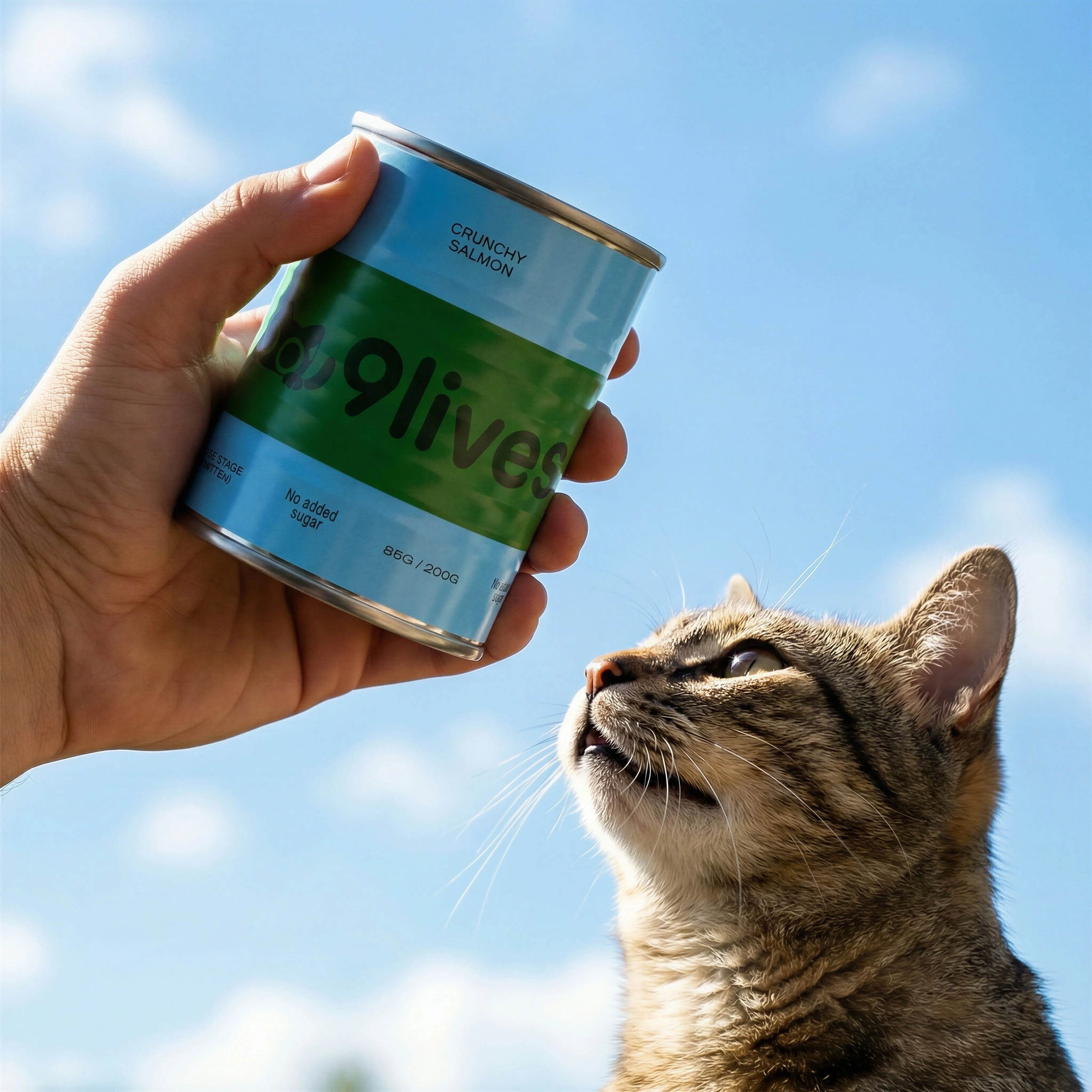
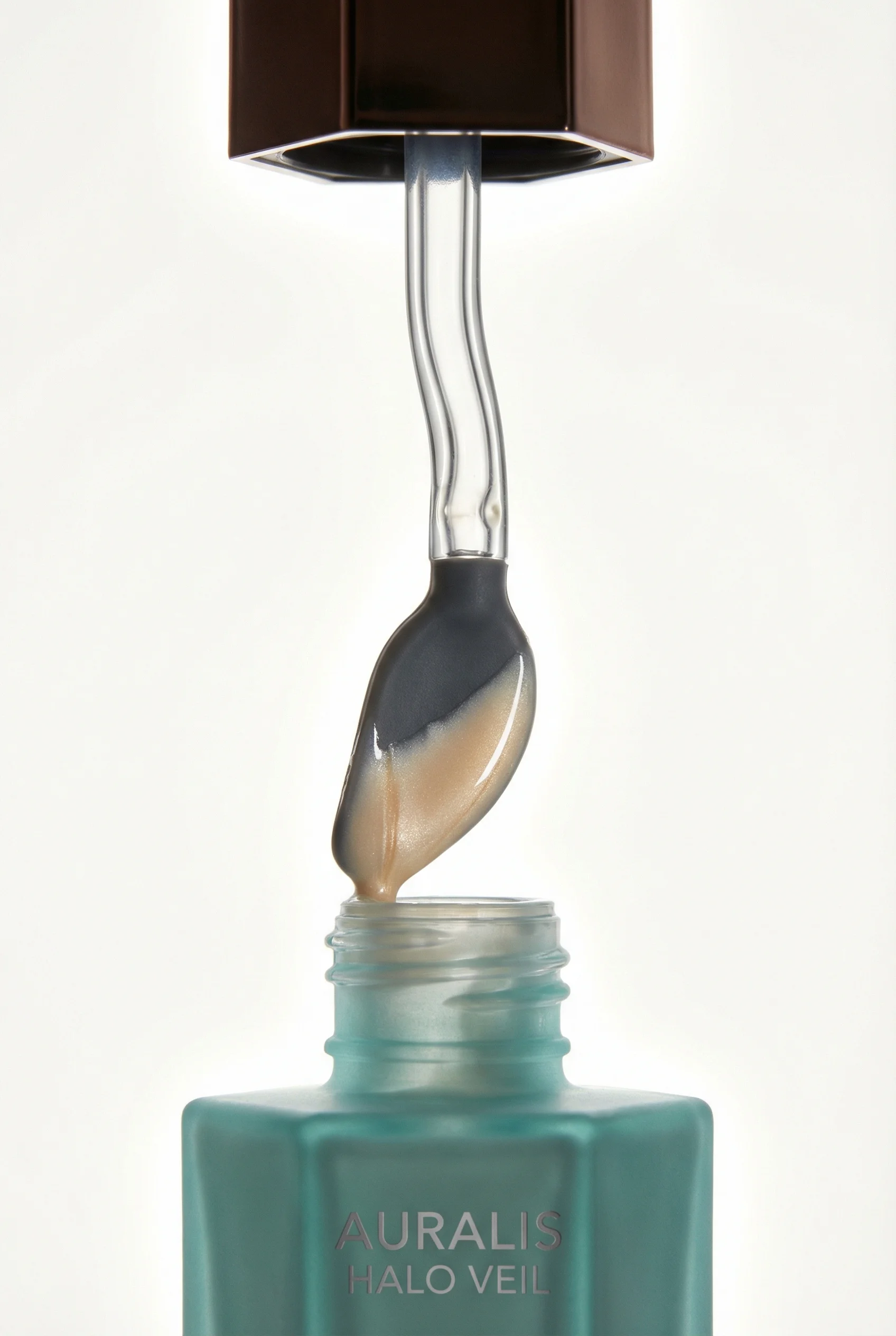
Small artwork and product surfaces need review before an AI image is production-ready.
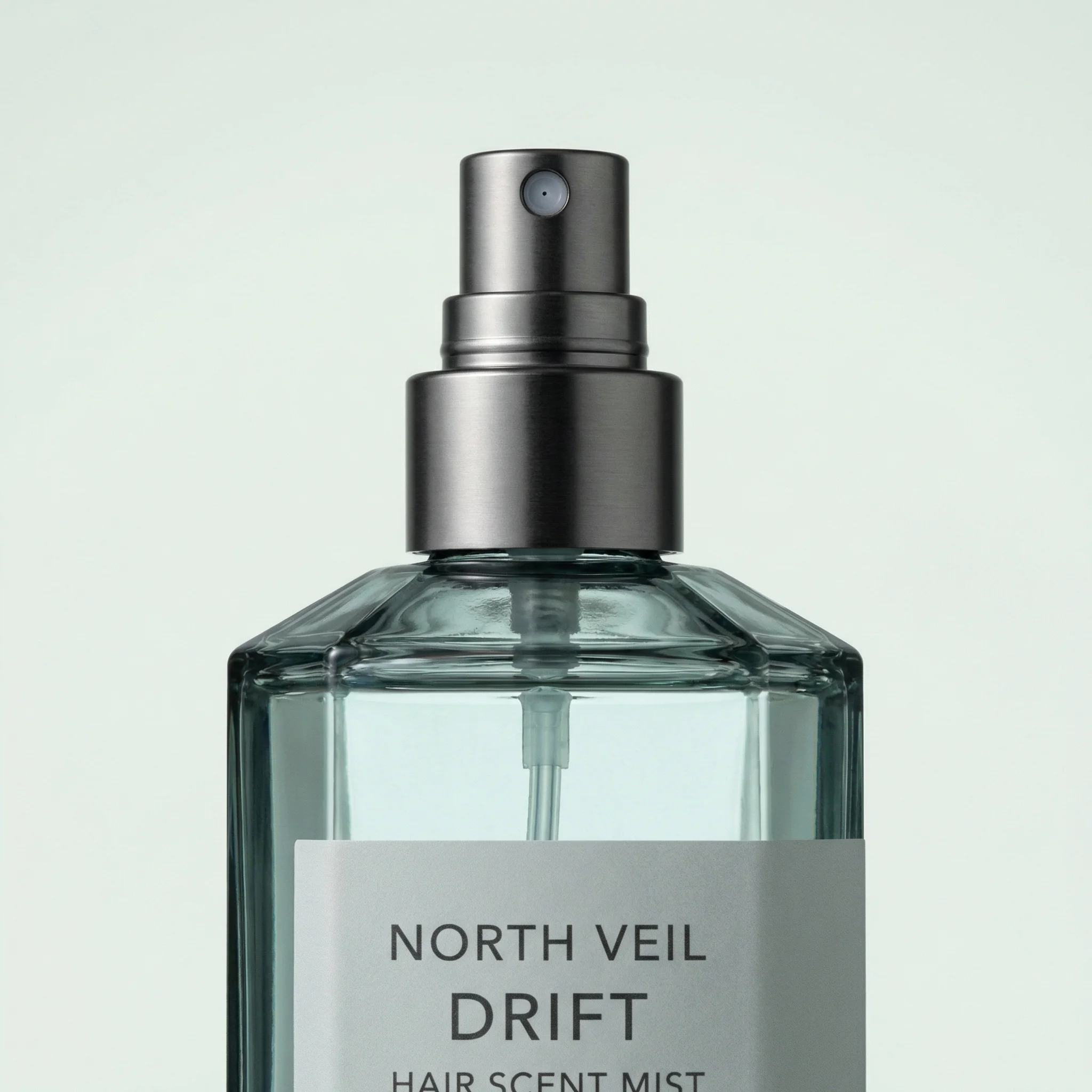
Labels, caps, materials, and printed copy are common detail-fix targets.
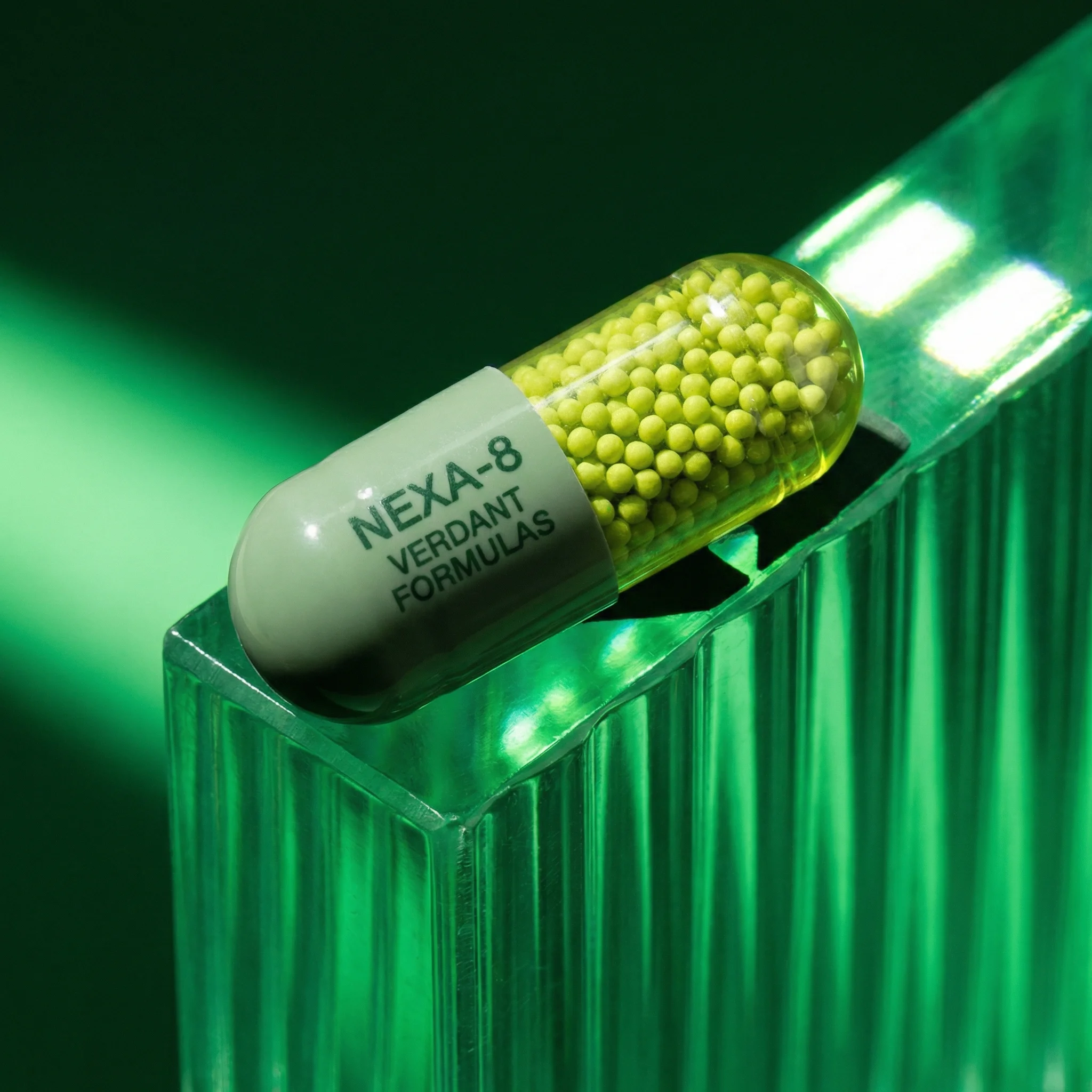
Tiny marks and hard edges often break first in generated product scenes.
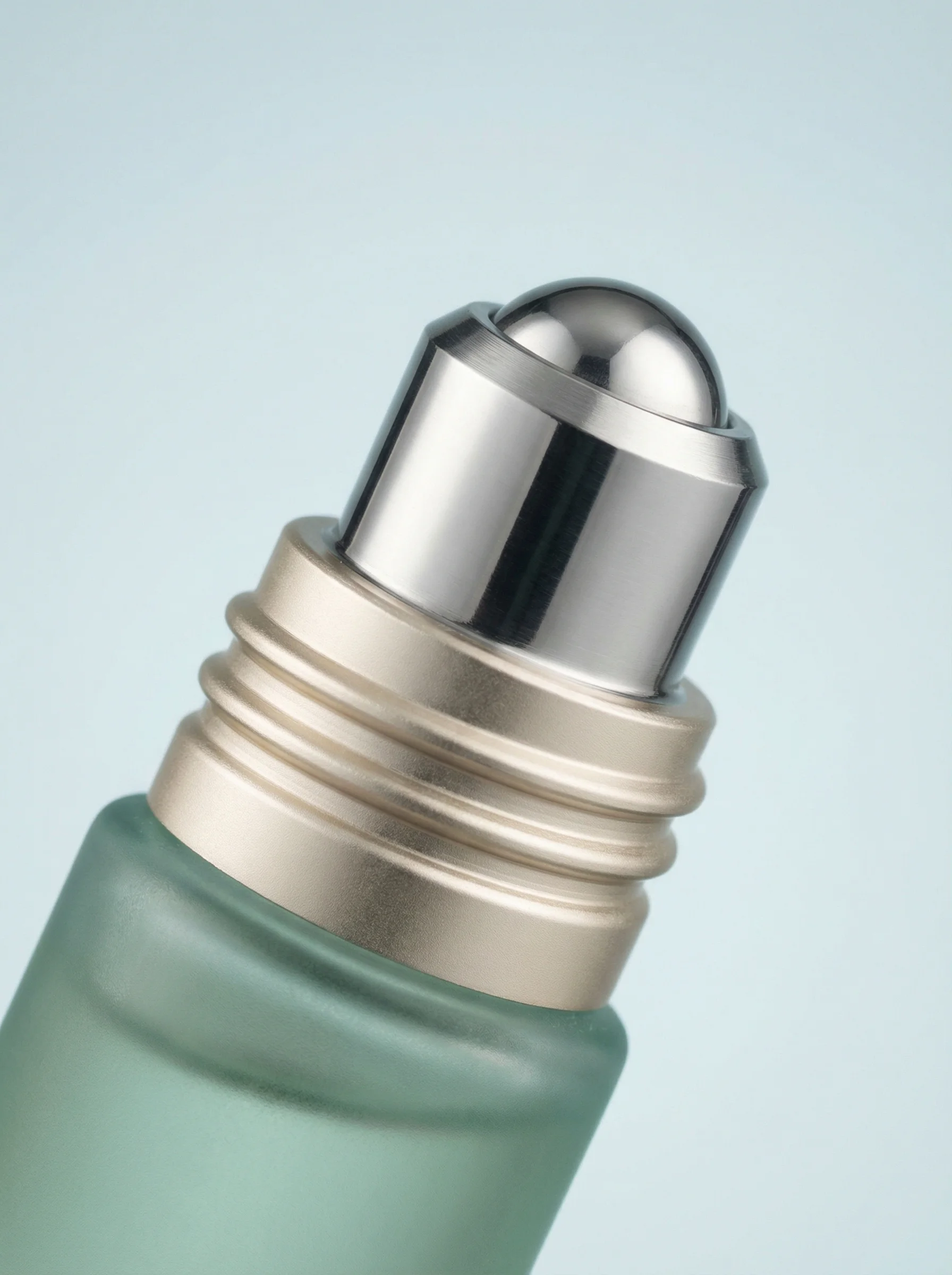
Detail repair should preserve the rest of the image, not restart the whole scene.
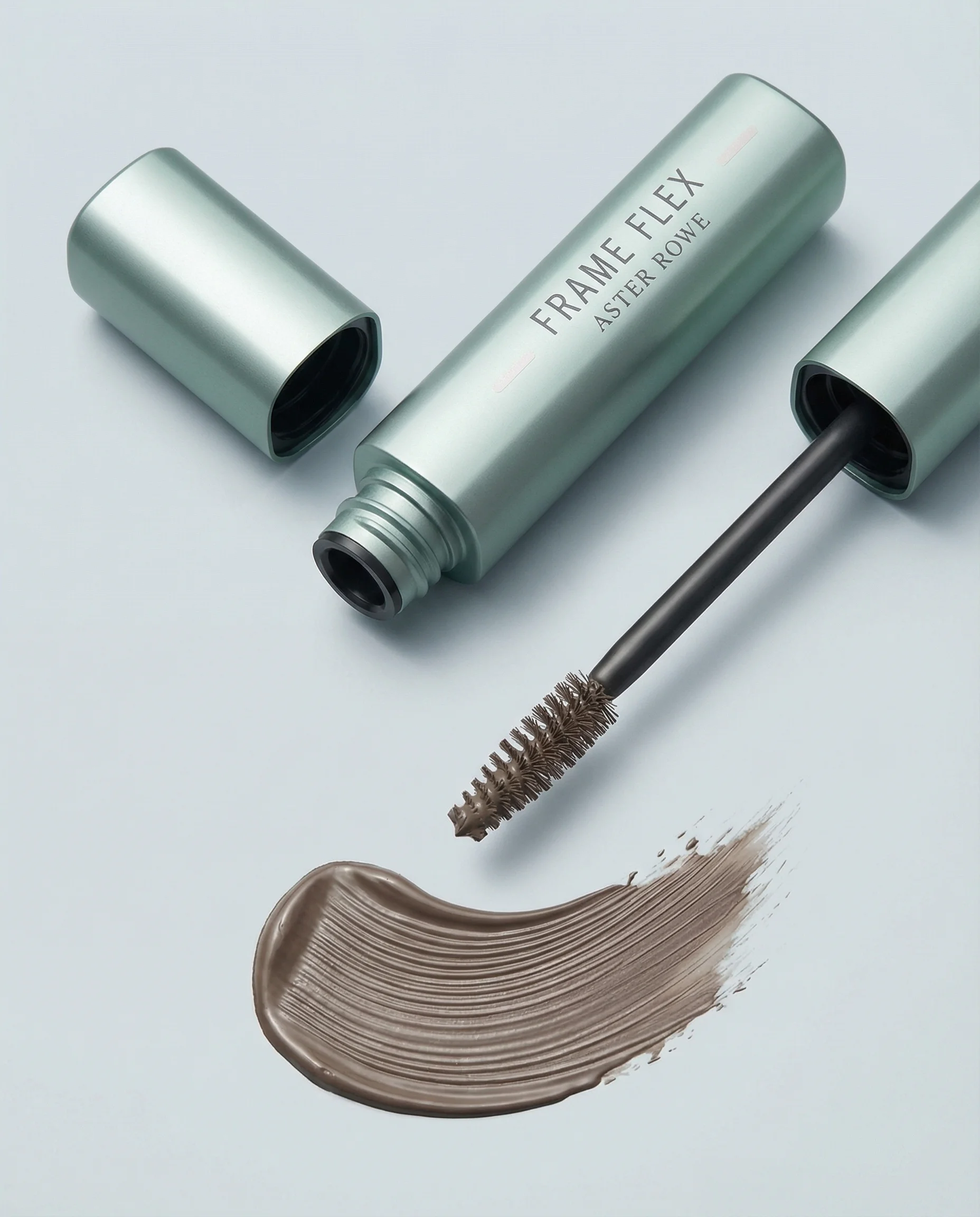
The fix workflow is useful when composition is right but artwork is not.
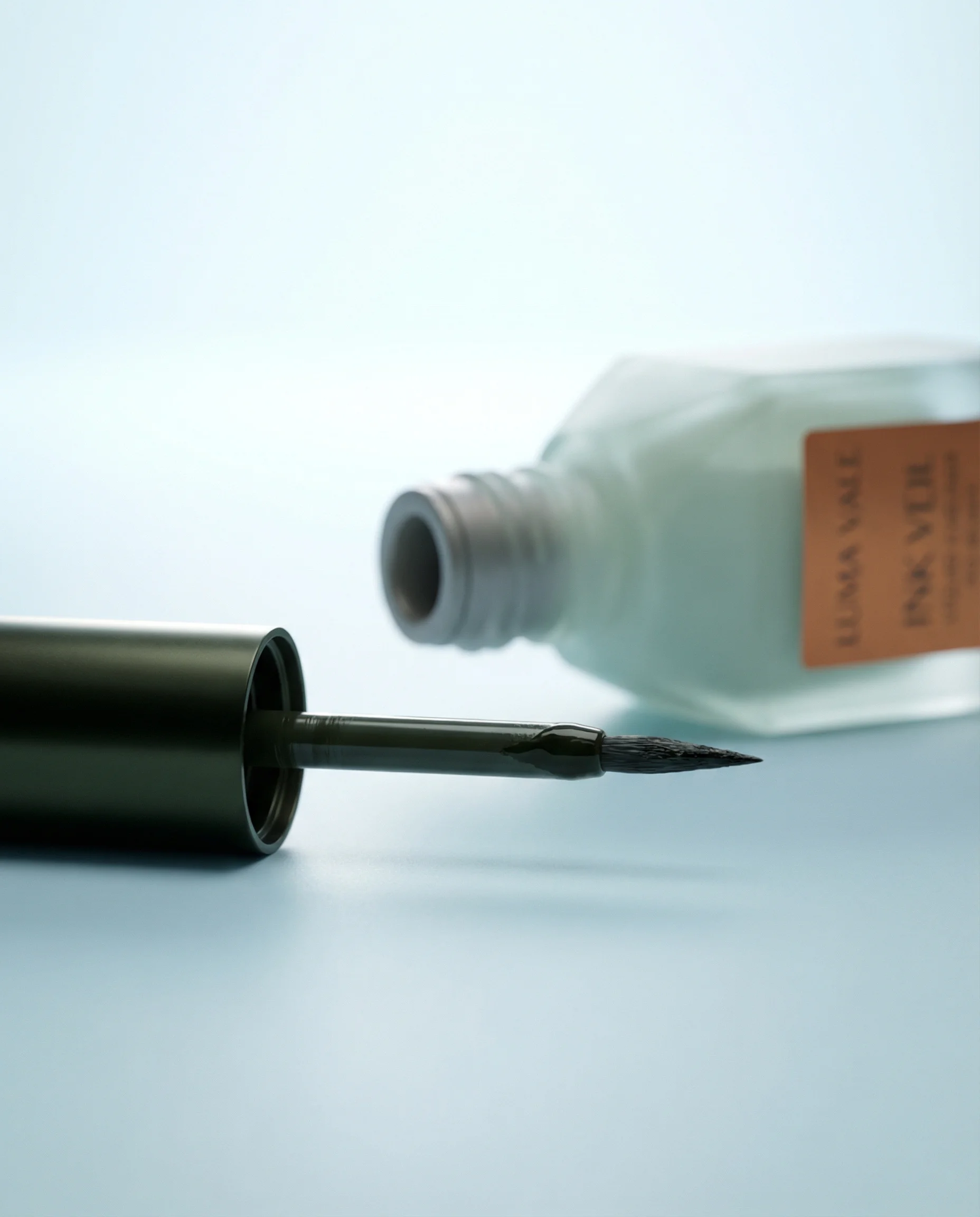
Product truth depends on legible small type, accurate artwork, and clean edges.
Why product details break in AI images
AI product images often fail at the exact details ecommerce teams care about most. A generated scene can look polished while the product text is wrong, the logo has softened, the label artwork has warped, or a factual detail has changed from something real into something impossible. A 100ml bottle can become 799ml. A flavor name can mutate. A certification mark can blur. A barcode, warning line, shade name, or ingredient callout can become invented texture.
For some creative, this is acceptable. A moodboard, early concept route, or distant background product might not need every line of copy to be perfect. But for PDP imagery, marketplace assets, paid ads, packaging-led product launches, retailer decks, hero scenes, and regulated categories, the product detail is not decoration. It is the product.
Historically, this is where teams handed the image to a human artworker. The composition might be good, but the label needed manual reconstruction in a specialist pixel editor like Adobe Photoshop. That works, but it adds time, cost, handoff complexity, and expert dependency to every AI creative workflow.
What Fix Product Details does
Fix Product Details is Riverflow's production answer to that problem. It is powered by Riverflow 2.0 Reference-Based Super Resolution, also known in workflow terms as the Super Resolution Reference model. Riverflow built this model specifically for product-detail repair: the production problem where a strong AI image is nearly approved, but the product artwork is not trustworthy enough to ship.
The model is designed for a very specific job. It looks for areas of the image where product artwork appears inaccurate, degraded, blurred, or hallucinated. It then isolates those areas, effectively zooms in on the product detail, and repairs the artwork from the supplied reference while keeping the wider image intact.
That reference can be a clean label image, packaging artwork, a product image, a packshot, or sometimes the same product image already attached to the asset. In the App, Fix Product Details lets teams attach up to 4 product or uploaded reference images to guide the repair.
Model examples
Riverflow 2.0 super-resolution examples
These Riverflow 2.0 examples show why detail repair is a production workflow, not just an upscale. The point is to identify the broken product detail, use a reference, and correct the artwork without changing the whole creative.
Video
Broken product detail repair
The model targets local detail issues rather than regenerating the full scene.
Video
Reference-led artwork correction
A reference image gives the model the product truth it needs to repair small artwork.
Video
Production detail preservation
The useful result is a corrected product detail inside the original approved composition.
When to use Fix Product Details
Choose the right approach
Product detail repair decision matrix
Use this to decide whether to fix, regenerate, or hand off to manual artwork.
| Scenario | Best action | Why |
|---|---|---|
| The scene is strong but the label is wrong | Use Fix Product Details. | This is the ideal case: preserve the approved creative and repair the product artwork in place. |
| Small copy has become unreadable | Use Fix Product Details with a clean reference. | AI often blurs or invents small text. A reference-led repair is more targeted than a full regeneration. |
| A factual product detail changed | Use Fix Product Details, then review against the SKU record. | Incorrect volume, flavor, shade, size, count, or regulatory wording can mislead shoppers. |
| The product shape or scene is wrong | Regenerate, use Photoshoots, or use Swap product. | Detail repair is not the right tool if the whole product, perspective, or use context is incorrect. |
| The label reference is outdated | Fix the source reference first. | The model can only repair toward the reference it is given, so stale artwork creates stale output. |
| The image is for early concepting only | Leave it until the route is approved. | Detail repair is most valuable after the image direction is worth keeping. |
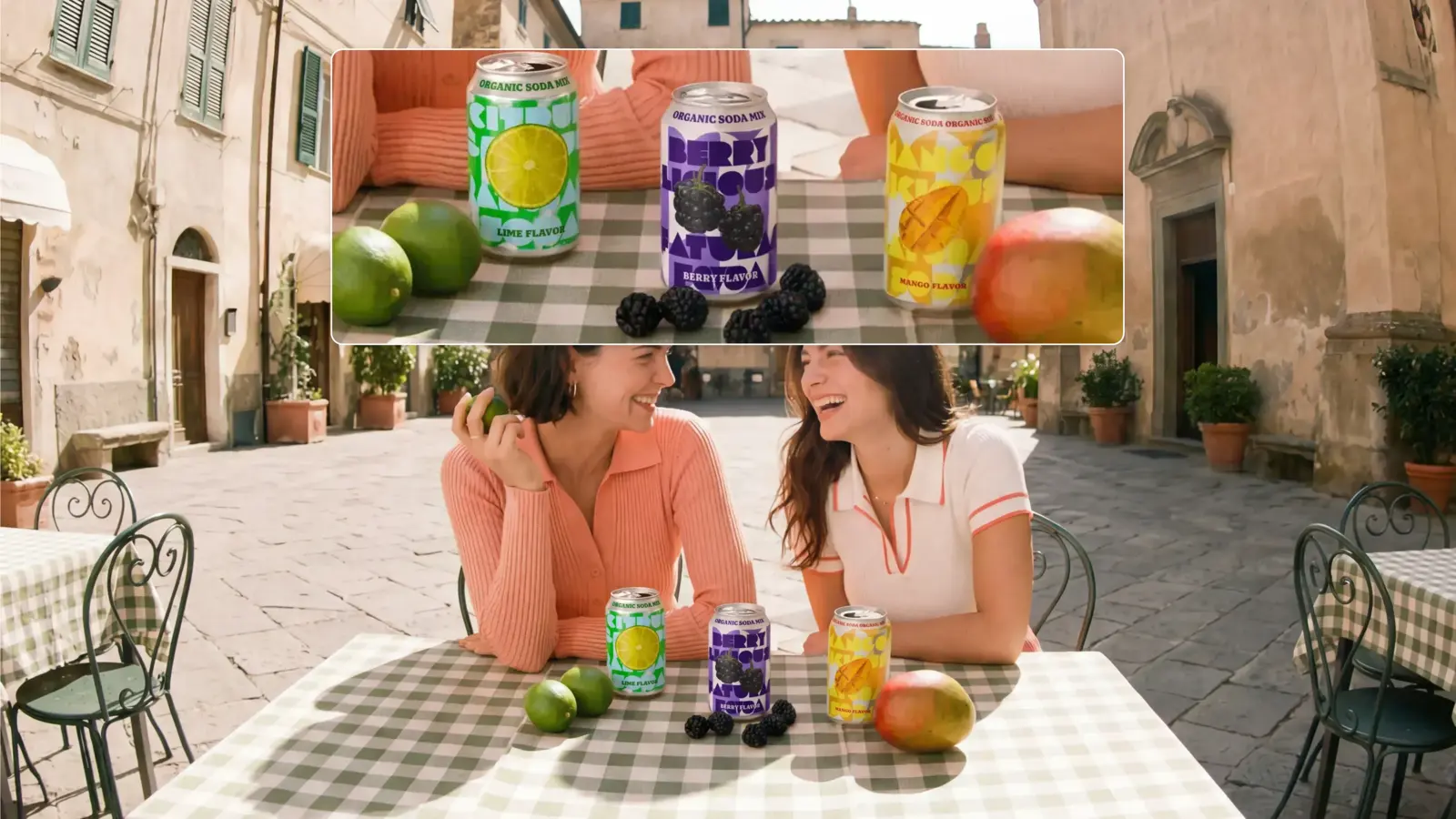
The Riverflow workflow
Riverflow workflow
How this works in Riverflow
Fix Product Details sits at the end of the production workflow: after the image idea is good enough to keep, but before the asset is exported or shared as final.
Images
Create or transform the creative
Use Images when you need text-to-image or image-to-image exploration with Riverflow 2.0 Pro, Google's Nano Banana 2, or OpenAI GPT-Image-2. At this stage, judge the overall creative direction, not only the small text.
Photoshoots
Adapt products into controlled scenes
Use Photoshoots when the product needs to appear in a Riverflow brand-safe Scene or an owned Scene from your own photoshoot. Styles help keep lighting, surface, camera distance, and shot type consistent across the set.
Editing
Repair the final product truth
Use Fix Product Details when the product is almost right but label, logo, artwork, small text, or packaging detail needs correction. Attach a label image, product image, packshot, or up to 4 reference images to guide the repair.
This workflow matters because it stops teams from throwing away strong images too early. If the light, scene, crop, and product placement are right, a full regeneration can create new errors. Fix Product Details is deliberately narrower. It asks: what exact product detail is wrong, what reference proves the correct answer, and can we repair that area without disturbing the rest of the creative?
What references work best
Before you publish
Prepare these references before running the fix
- Clean label artwork for the exact SKU, shade, size, flavor, scent, or pack variant.
- A high-quality product image or packshot showing the label front-on.
- Secondary references for side panels, cartons, lids, caps, seals, texture, or multi-product sets.
- Current product data for factual details such as 100ml, 30 capsules, SPF level, shade name, scent, or flavor.
- The final channel crop, so you can judge whether the corrected detail is legible at real size.
- Any legal, regulatory, or retailer-specific copy that must not be invented or changed.
The best reference is not always the prettiest image. It is the image that makes the truth unambiguous. If the problem is a front label, use a front label reference. If the problem is a carton edge, include the carton. If the scene contains several products, provide the relevant references separately so the model can avoid borrowing detail from the wrong SKU.
This is different from general upscaling. Upscaling asks for more usable resolution. Fix Product Details asks for a specific local correction against product truth. It is also different from detail product photography, which is about choosing the right close-up proof shot before there is anything to repair.
Review checklist
Before you publish
Check the repair before approving
- The corrected text matches the approved source exactly where it needs to be exact.
- Numbers, volumes, sizes, claims, certifications, warnings, and ingredient references have not changed.
- The repaired area blends naturally with lighting, shadow, reflection, blur, grain, and perspective.
- The rest of the product has not been altered unnecessarily.
- Other products in the frame have not inherited artwork from the wrong reference.
- The asset still works in the final crop, placement, and mobile preview.
- The approved output is saved with its source image, references, edit history, and reviewer notes.
Fix Product Details prompt recipe
Create it in Riverflow
Fix Product Details prompt recipe
Use this structure to turn the strategy into a specific creative brief that keeps the product accurate and the scene useful.
- 1
Input
Start with the generated image you want to keep, then attach the clearest product or label references for the details that need repair.
- 2
Identify
Name the product area that is wrong: front label, flavor name, 100ml volume, logo mark, shade label, carton text, icon, cap artwork, or small package copy.
- 3
Protect
State what must not change: scene, lighting, hands, background, product scale, crop, reflections, shadows, and all unrelated artwork.
- 4
Repair
Ask Fix Product Details to update only the inaccurate product artwork using the supplied reference.
- 5
Review
Compare the output against the source reference and the final channel crop before approving it.
Example prompt
Mistakes to avoid
Regenerating a strong image because one label detail is wrong.
Use Fix Product Details when the composition is approved and the remaining problem is local product artwork.
Using a low-quality reference and expecting exact text repair.
Attach the cleanest available label, product image, or packshot so the model has real product truth to follow.
Treating every tiny line of text as mandatory.
Decide what needs to be exact for the channel. PDP and marketplace images need more detail accuracy than distant concept visuals.
Fixing before the creative route is approved.
Run detail repair late in the workflow, after the scene, crop, style, and product placement are worth keeping.
Approving from the full-size preview only.
Check the final crop and mobile size. A repaired label can look good zoomed in but still be unreadable in a paid social placement.
Forgetting regulated or factual details.
Volume, dosage, SPF, certification marks, warnings, age ranges, and ingredient claims need SKU-level review before export.
Why this matters for production teams
Riverflow 2.0 was built around production pain points: reliability, font control, and detail preservation. The Riverflow 2.0 research article explains why frontier models can produce impressive 2K and 4K images while still distorting fine text and product details. That gap is where human artworking used to sit.
Fix Product Details changes the workflow. Instead of sending every near-finished AI image to a specialist artworker, teams can repair product artwork inside Riverflow. Riverflow is already being used in large consumer-brand production workflows where manual retouching, approval speed, and product accuracy all matter.
For teams producing PDP images, campaign concepts, retail media assets, marketplace visuals, paid social crops, and product launch creative, this is often the difference between "interesting generation" and "approved asset."
FAQ
What is Fix Product Details?+
Fix Product Details is a Riverflow edit action that repairs degraded, blurred, hallucinated, or inaccurate product artwork in AI-generated images. It is powered by Riverflow 2.0 Reference-Based Super Resolution.
What kinds of details can it fix?+
It is designed for label artwork, logos, small product text, variant names, factual copy, packaging marks, symbols, edge detail, and other SKU-critical product details.
Do I need a label reference?+
A clean label reference is ideal, but a product image or packshot can also work when it clearly shows the detail that needs repair. In the App, you can attach up to 4 product or uploaded reference images.
Is this the same as normal upscaling?+
No. Normal upscaling increases image resolution but often cannot recover missing or hallucinated artwork. Reference-Based Super Resolution uses reference images to guide the repair of specific product details.
When should I still use a human artworker?+
Use a human artworker when the reference is ambiguous, the artwork itself needs redesign, the image has legal or regulatory risk that requires manual sign-off, or the entire product or scene needs reconstruction rather than local detail repair.
Where can I use it?+
Fix Product Details is available today in the Riverflow App from the image preview editing actions. Open an image, choose Fix product details, attach the relevant references, and generate the corrected version.
Sources and related reading
Last reviewed: May 2, 2026.
Start creating
Get started with on-brand visuals
Turn guide ideas into product-accurate creative in Riverflow, using your brand, products, scenes, styles, and channel crops from the start.
Your catalog into campaign-ready Creative
Riverflow connects your products, brand rules and creative workflows so your team can create on-brand photoshoots, ads, videos and edits across every campaign.