Guide
Shopify Product Image Guide for Ecommerce Teams
A practical Shopify product image guide for teams preparing consistent, high-quality visuals for product pages and campaigns.
- Guides
- Ecommerce Image Requirements

Examples
Scenes from the Riverflow library
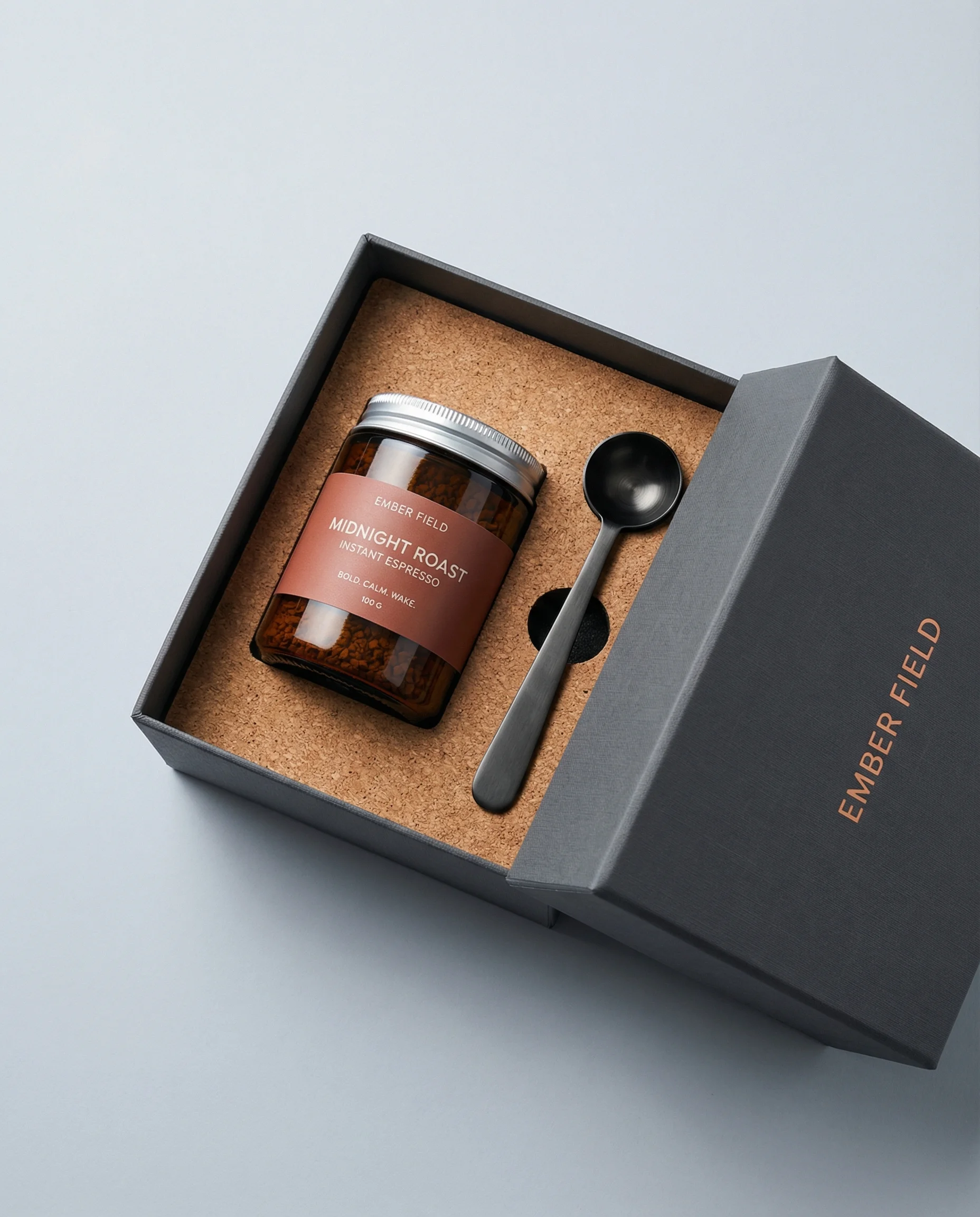
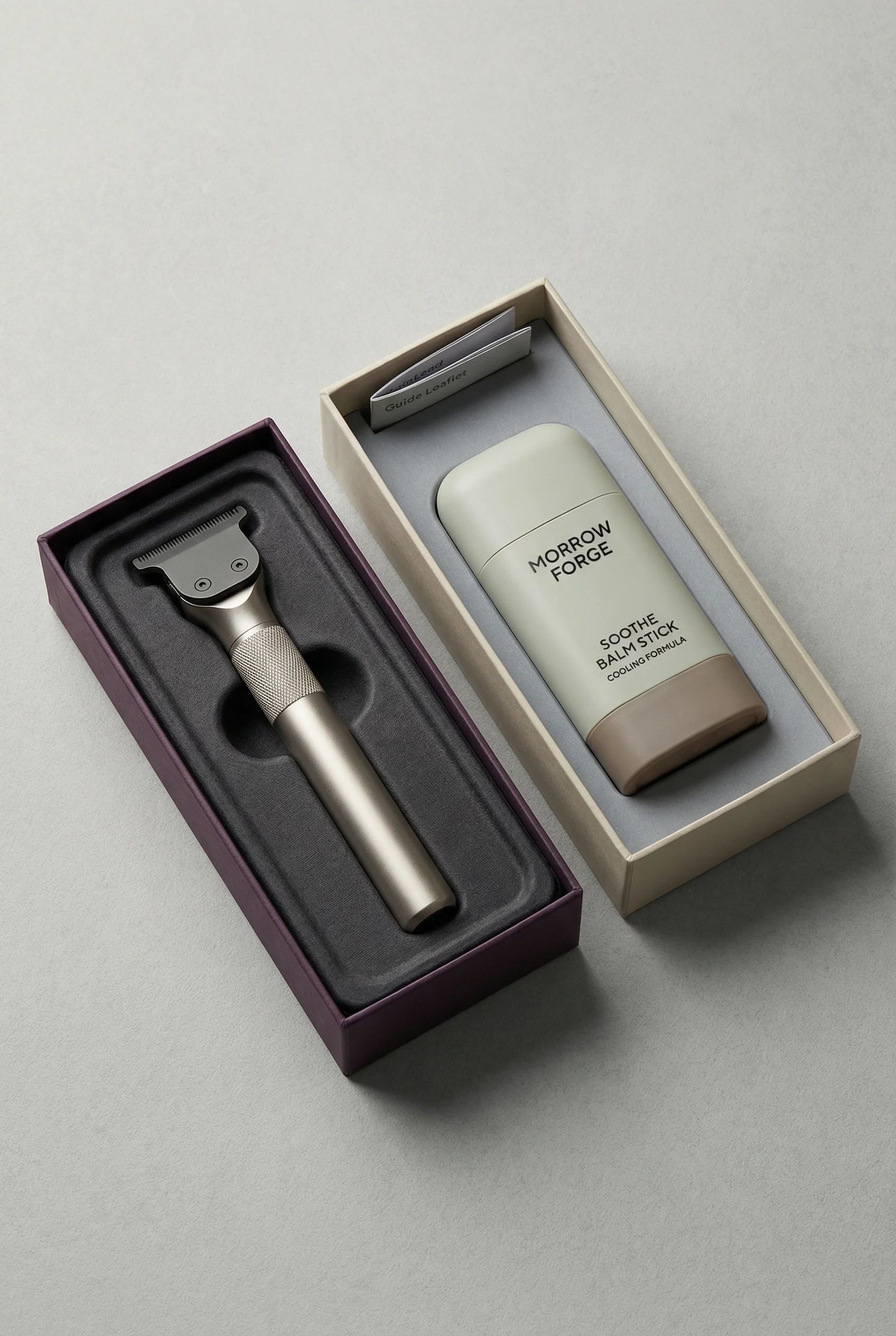
Top-down packaging shot for bundles, inserts, and secondary product images.
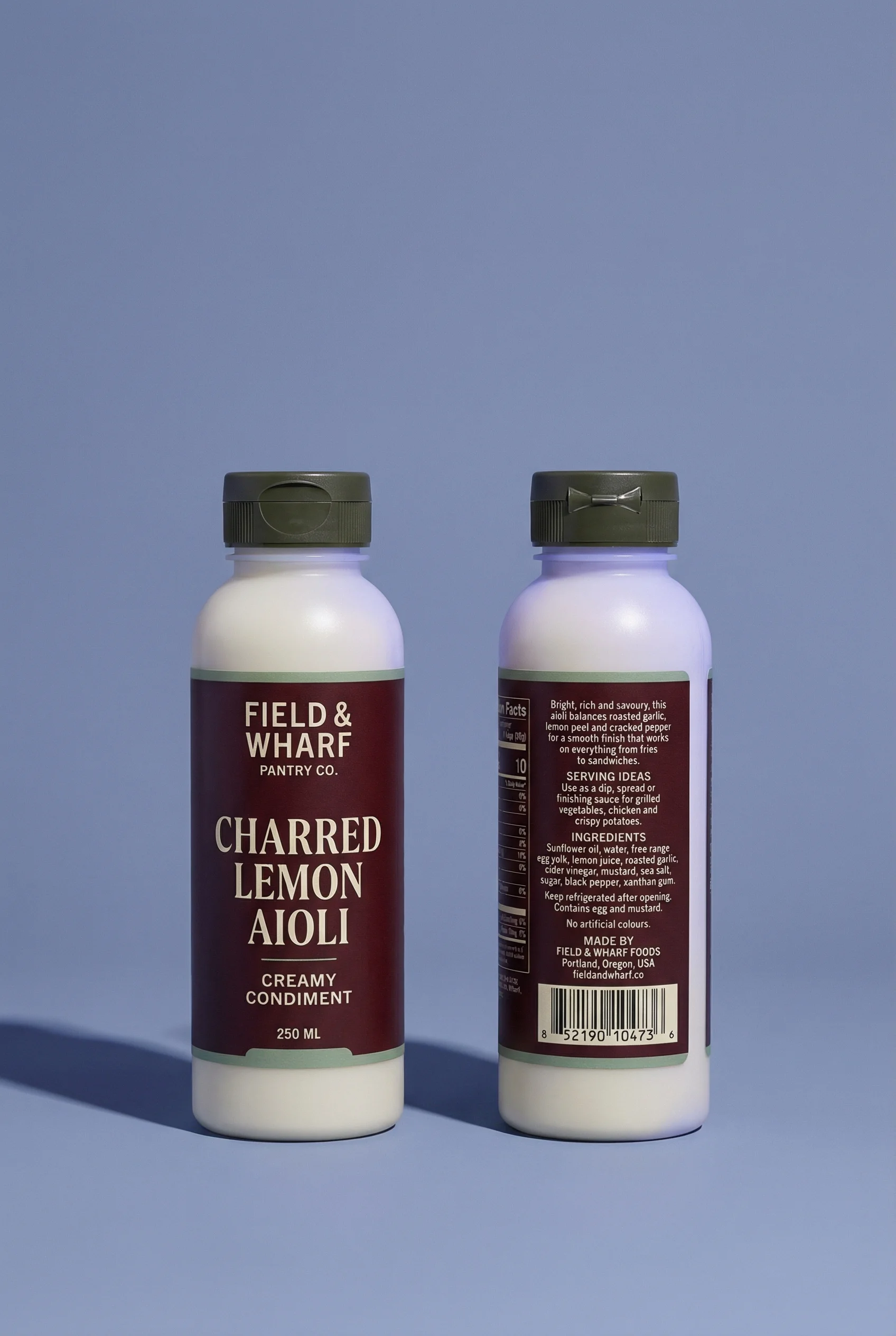
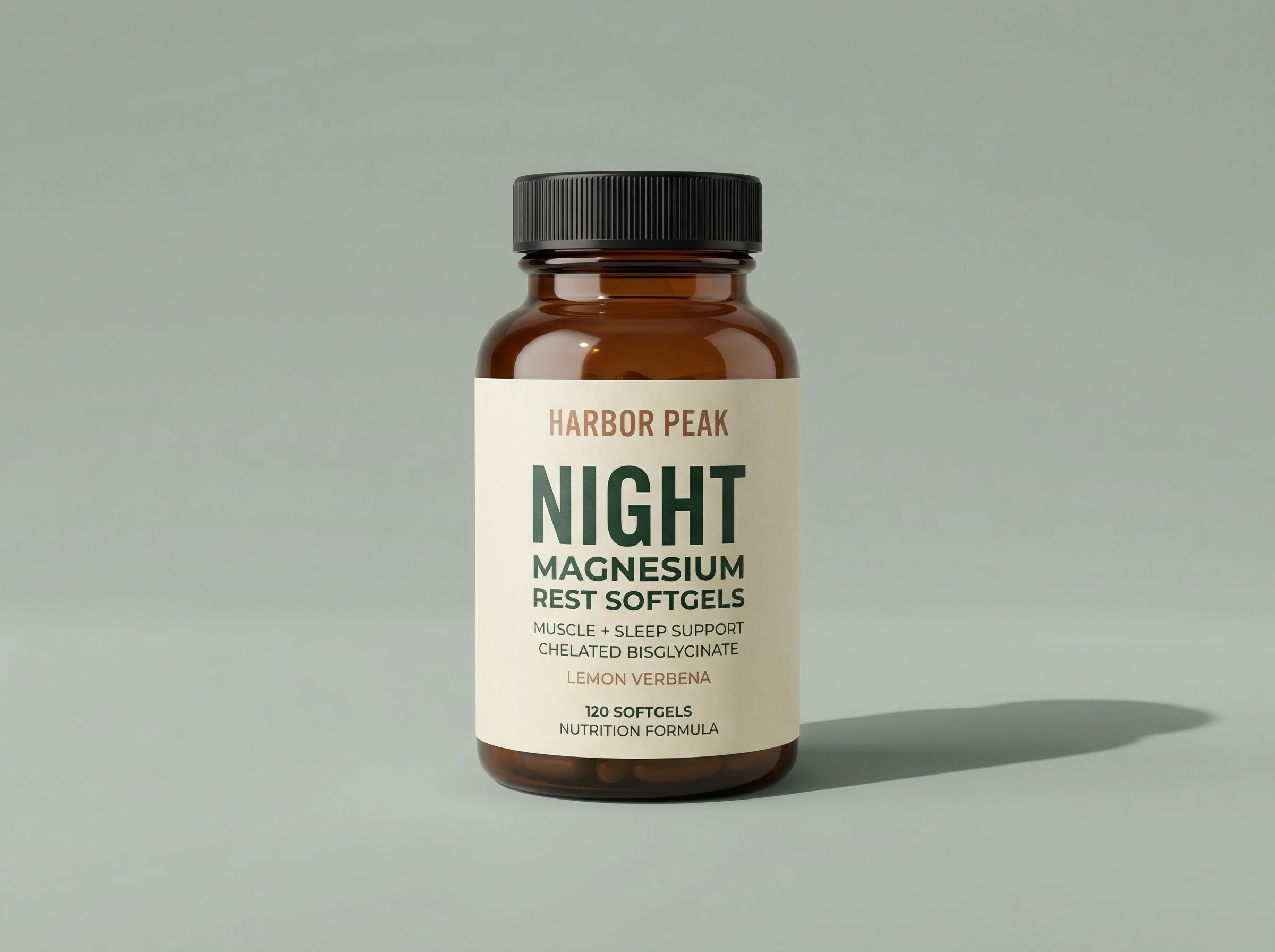
Front-and-back bottle view that explains labels without clutter.
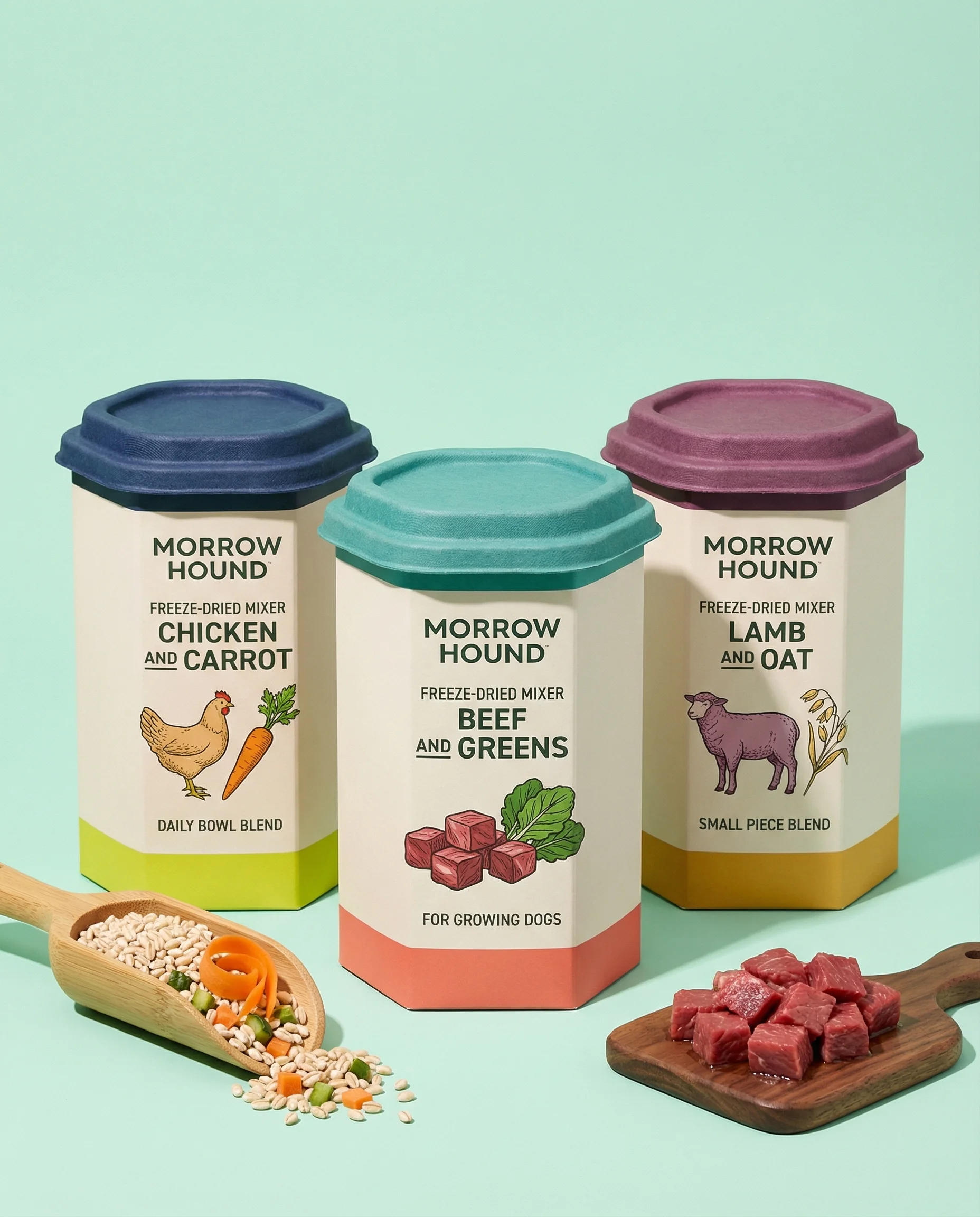
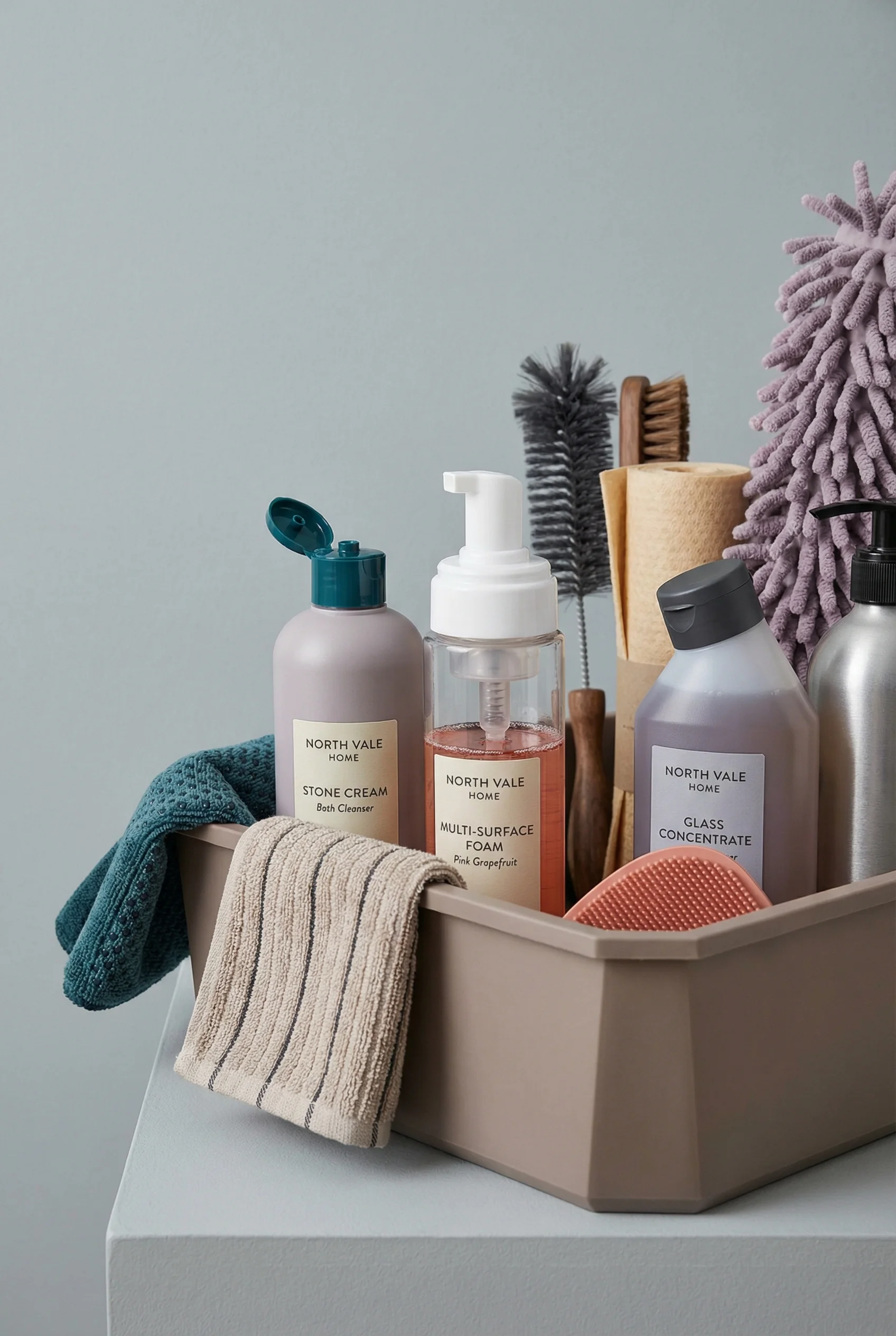
Variant lineup with soft props for collection or subscription pages.
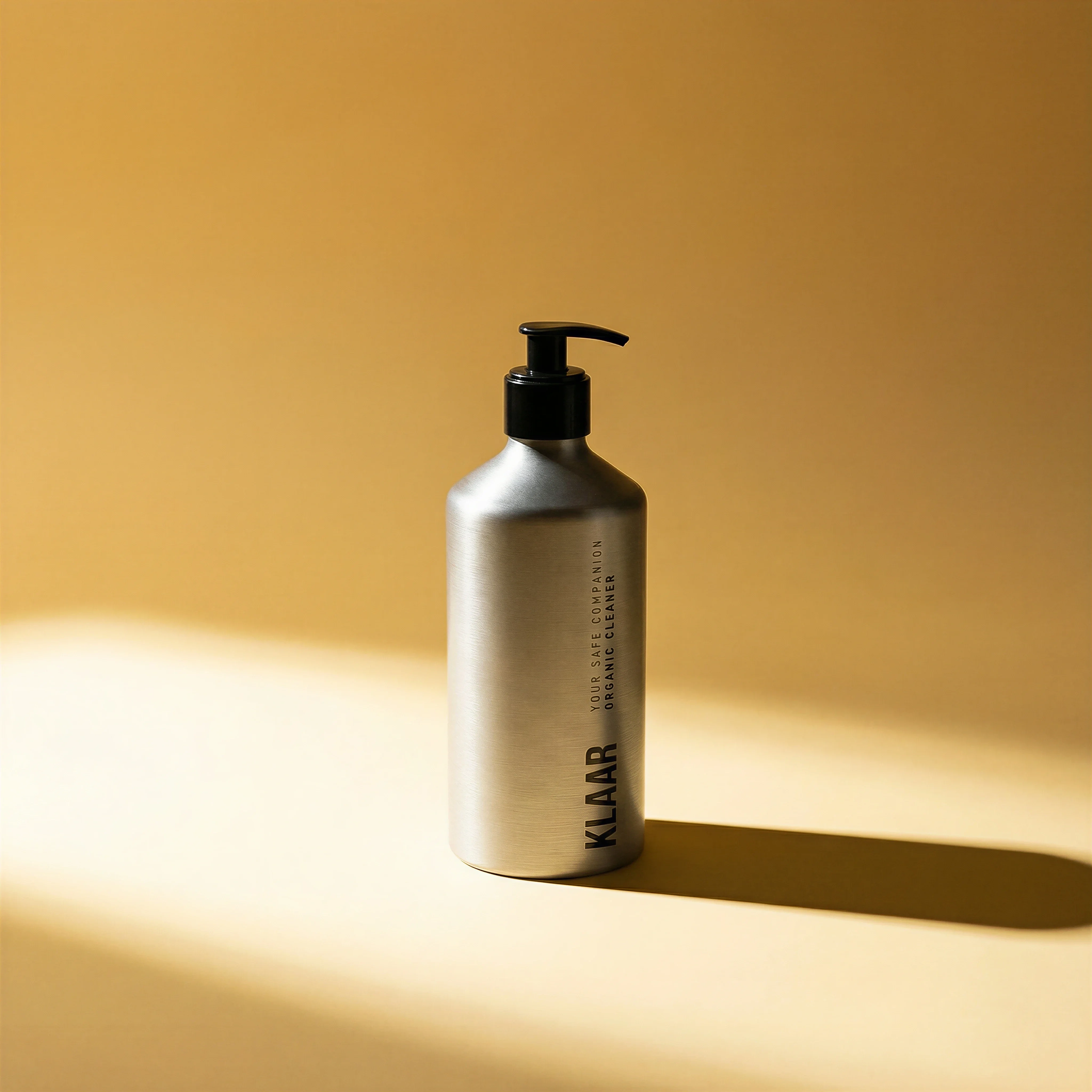
Clean packshot with generous whitespace for a Shopify main image or variant tile.
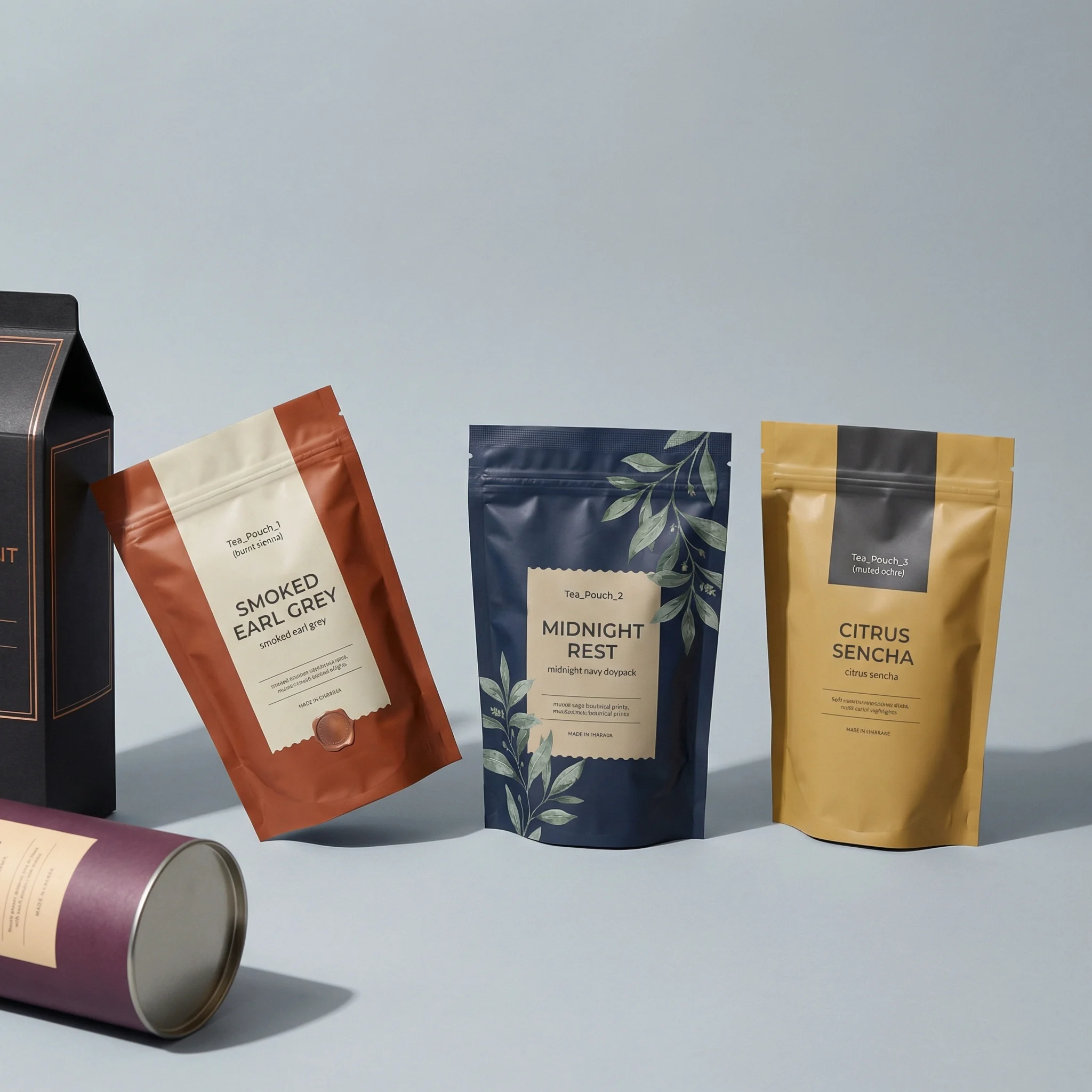
Square lineup that explains variants while keeping each pouch readable.
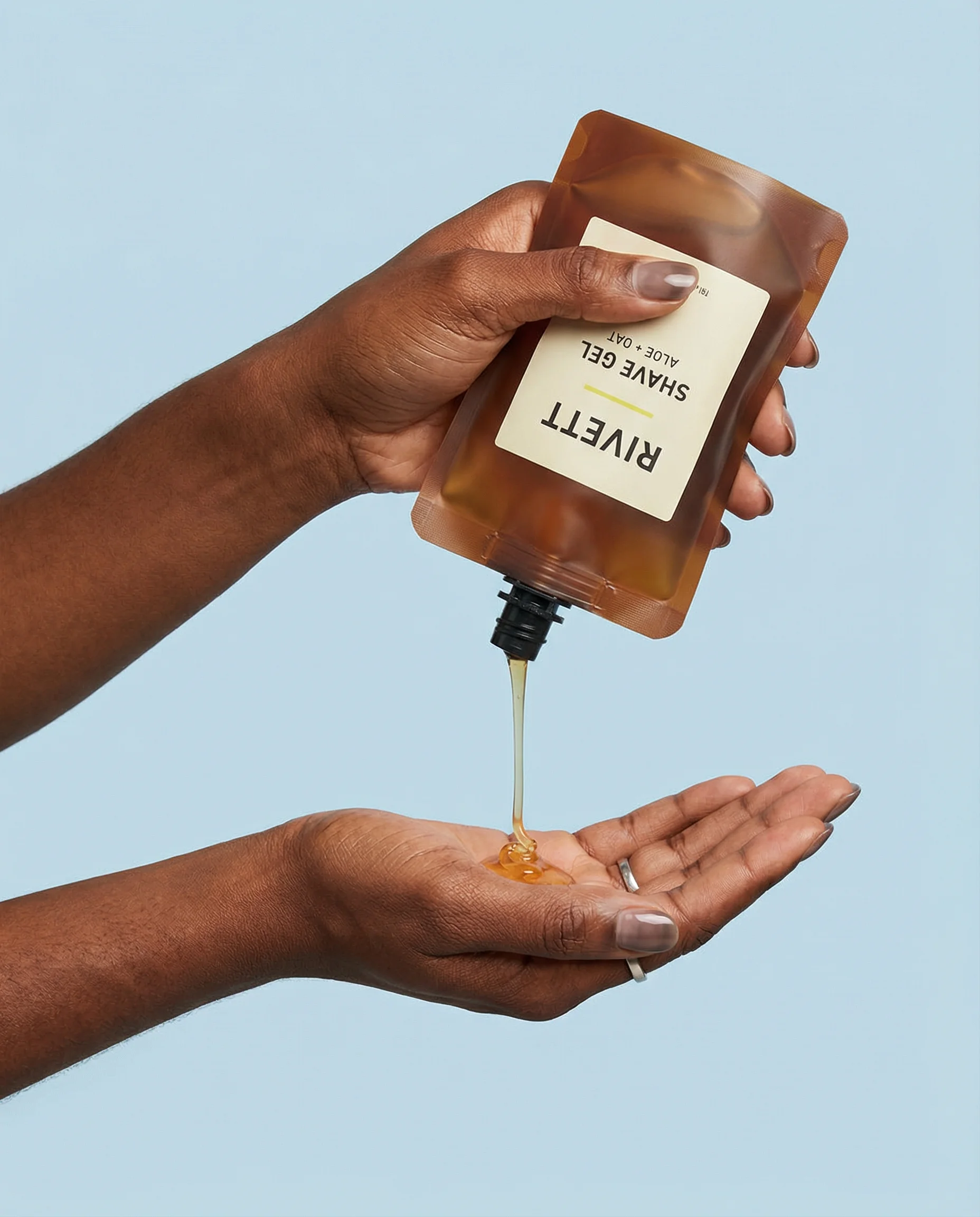
In-use detail crop that adds texture and scale to a product gallery.
Shopify product images do more than fill a gallery. They help shoppers understand what they are buying, compare variants, inspect details, and build confidence before checkout. A strong image set can also support paid ads, email, merchandising, and marketplace feeds.
The best Shopify image workflow starts before export. Decide what each gallery image needs to prove, then create consistent assets that match the product, brand, and store theme.
If you are planning the full asset set before upload, start with an ecommerce product photography shot list so Shopify gallery needs, ad crops, and marketplace images are briefed together. Then cross-check channel-specific needs in the Google Shopping image requirements, TikTok Shop image guide, and Meta ad image sizes guide.
Shopify product image snapshot
Choose the right approach
Reviewed May 2, 2026
Shopify gives product teams generous upload limits, but the storefront theme decides how images actually crop and display.
| Requirement | Current practical answer | Operator note |
|---|---|---|
| Recommended square source | 2048 x 2048 px usually displays best for square product images. | Use this as the default working export for zoomable PDP images and collection cards unless your theme needs a different crop. |
| Maximum product image | Up to 5000 x 5000 px or 25 MP. | Do not upload giant source files just because Shopify accepts them; performance and theme rendering still matter. |
| File size | Product and collection images must be under 20 MB. | Keep final assets much smaller when possible so product pages stay fast on mobile. |
| File types | PNG and JPEG are the safest everyday choices; Shopify also accepts formats including WebP, HEIC, GIF, SVG, TIFF, PSD, and BMP. | Use JPEG for photography, PNG for transparency or crisp graphics, and test edge-case formats in the active theme. |
| Aspect ratio | No single ratio is required for every store. | Use consistent featured-image ratios across a collection so product grids do not jump or crop unpredictably. |
| Gallery depth | Plan 5-8 useful images for most ecommerce products. | Cover the shopper questions: what it is, what is included, how big it is, how it is used, and how variants differ. |
Build a complete Shopify product gallery
Visual playbook
Shopify gallery visual playbook
A product page gallery should answer practical shopper questions in a clear sequence.
Clean main product image
The main image should be the clearest representation of the product and work well in product grids, variant tiles, and search results.
Use when: Use as the first gallery image and as the product card source when your theme supports it.
Prompt cue
Create a clean Shopify main product image with the full product centered, accurate packaging, consistent lighting, and no promotional overlays.
Packaging and bundle contents
A top-down or open-box image helps shoppers understand what arrives, especially for kits and giftable products.
Use when: Use for bundles, starter sets, gifts, subscriptions, and products where inserts or packaging affect perceived value.
Prompt cue
Create a Shopify gallery image showing the product box, included items, and inserts accurately, without adding items that are not part of the offer.
Front and back label view
Paired views help shoppers inspect ingredients, directions, claims, or product details that are hard to see in a single image.
Use when: Use for food, beauty, wellness, pet, cleaning, and regulated or information-heavy products.
Prompt cue
Create a Shopify gallery image with front and back product views side by side, keeping both labels accurate and readable.
Variant lineup
A consistent lineup helps shoppers compare flavors, scents, colors, sizes, or pack types without visual noise.
Use when: Use on product pages, collection pages, subscription pages, and merchandising modules.
Prompt cue
Create a Shopify variant lineup showing each pouch clearly, with accurate flavor names, consistent spacing, and a clean square crop.
Texture or use detail
A close-up in-use image adds tactile information that a main image cannot communicate alone.
Use when: Use for skincare, grooming, food, materials, finishes, and products where texture affects purchase confidence.
Prompt cue
Create a Shopify detail image showing product texture in use, with realistic scale, accurate product color, and a crop that complements the main gallery.
Plan images by page role
Choose the right approach
Shopify image planning matrix
Different parts of the store need different image behavior. Plan the asset set before upload.
| Scenario | Image requirement | Creative note |
|---|---|---|
| Main product image | Show the exact product clearly and at useful scale. | Use the cleanest, most accurate representation as the shopper's first view and export a source that supports zoom. |
| Product gallery | Cover angles, details, scale, lifestyle context, packaging, and variants. | Make every image answer a shopper question instead of repeating the same view. |
| Collection grid | Keep crop, background, and product scale consistent across the collection. | Consistency matters most when many products appear side by side. |
| Variant selection | Use images that match the selected color, flavor, size, scent, or pack count. | Avoid generic imagery that leaves the shopper guessing what they chose. |
| Campaign reuse | Prepare additional crops for email, paid social, banners, and marketplace feeds. | Keep product truth consistent even when creative style changes by channel. |
Backgrounds and consistency
Clean backgrounds are useful for product grids because they reduce visual noise. White, light neutral, or brand-color backgrounds can all work if they are consistent across the collection.
Lifestyle images should still follow a system. Use similar lighting, camera distance, and color treatment so the store does not feel like a mix of unrelated shoots. If your products have reflective packaging, transparent materials, or fine label text, review the image at mobile size before publishing.
Shopify image checklist
Before you publish
Before upload
- The product matches the exact SKU and variant.
- Square source images are around 2048 x 2048 px where that matches the theme and gallery behavior.
- No product or collection image exceeds Shopify's 5000 x 5000 px, 25 MP, or under-20 MB upload limits.
- File size is optimized for mobile page speed, not only for upload acceptance.
- The product is centered and not cropped too tightly.
- Labels, logos, packaging text, and included items are accurate.
- Background style is consistent across the collection.
- Lifestyle images show realistic use, scale, and context.
- Variant images match color, size, flavor, scent, material, or pack count.
- Alt text is descriptive and specific.
Riverflow prompt recipe
Riverflow workflow
How this works in Riverflow
Build a Shopify image set that answers shopper questions while staying consistent across the store.
Photoshoots
Create a gallery system with Scenes
Use Riverflow's brand-safe Scene library or bring your own photoshoot Scenes, then adapt them to the product. Apply Styles so main images, detail shots, lifestyle frames, and variant lineups share the same lighting and crop logic.
Images
Generate supporting assets
Use Riverflow 2.0 Pro, Google's Nano Banana 2, and OpenAI GPT-Image-2 for text-to-image and image-to-image work when the gallery needs new lifestyle context, backgrounds, or transformed source imagery.
Editing
Prepare variants for store use
Generate 9 angle variants, change aspect ratio for product pages and collection grids while keeping the image natural, use Riverflow 2.0 Reference-Based Super Resolution to update artwork in place without changing the rest of the image, or swap products into a consistent gallery layout.
Create it in Riverflow
Create a Shopify product image set in Riverflow
Use this structure to turn the strategy into a specific creative brief that keeps the product accurate and the scene useful.
- 1
Gallery plan
Define the image sequence before generating: main image, angle, detail, scale, lifestyle, variant, and packaging or bundle.
- 2
Product truth
Use the exact SKU, variant, packaging, label, material, color, and included items as the source of truth.
- 3
Style
Apply consistent lighting, background, crop, and camera distance across the collection using a Style that fits the store theme.
- 4
Output
Generate web-ready crops for the product page, collection grid, and campaign channels, then review product detail, theme behavior, and mobile presentation before upload.
Example prompt
Mistakes to avoid
Mixing supplier photos, phone photos, studio images, and generated lifestyle scenes without harmonizing them.
Create a visual system for lighting, crop, background, and scale before uploading the gallery.
Over-compressing images until labels, edges, and textures break down.
Balance performance with enough detail for zoom, mobile product cards, and shopper inspection.
Using generated images that change the cap, label, color, stitching, dimensions, or accessories.
Review each image against the product page and source reference before publishing.
FAQ
What size should Shopify product images be?+
For square product photos, 2048 x 2048 px is a strong default. Shopify product and collection images can be up to 5000 x 5000 px or 25 MP and must be under 20 MB, but your theme and performance budget should decide the final export.
What image should be first in a Shopify product gallery?+
Use the clearest product representation first: exact SKU, current packaging, useful scale, and minimal ambiguity. Lifestyle, texture, and bundle images should add context after the shopper knows what they are buying.
Do Shopify product images need to be square?+
No. Square sources often work well for grids, product cards, marketplace reuse, and zoom, but portrait or landscape crops can work if the active theme handles them consistently.
How many images should each Shopify product page have?+
Most ecommerce PDPs benefit from 5-8 purposeful images: main product, secondary angle, detail, scale, in-use or lifestyle, packaging or contents, and variant or bundle clarification where relevant.
Can Shopify product images be reused for ads?+
Yes, but ad crops usually need stronger hooks, placement-safe text, and channel-specific layouts. Keep the product source truth consistent and adapt the crop intentionally rather than relying on rough resizing.
Sources and review notes
Last reviewed: May 2, 2026.
Start creating
Get started with on-brand visuals
Turn guide ideas into product-accurate creative in Riverflow, using your brand, products, scenes, styles, and channel crops from the start.
Your catalog into campaign-ready Creative
Riverflow connects your products, brand rules and creative workflows so your team can create on-brand photoshoots, ads, videos and edits across every campaign.